
Settings — All settings
Settings are the central hub for configuring your Vinitor business. You reach the page via Settings in the sidebar. At the top of the page you switch between four tabs:
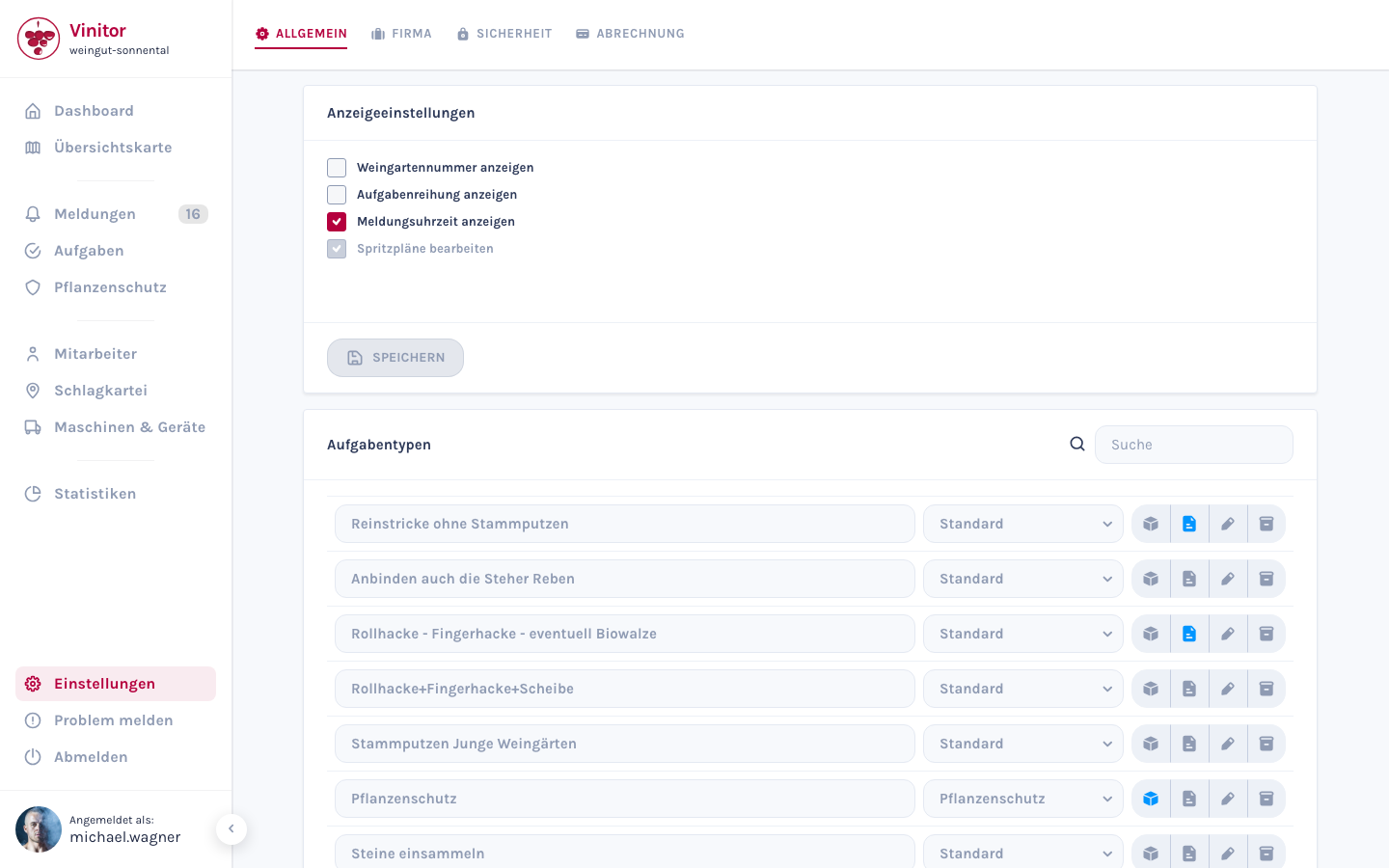
Four sections
Section titled “Four sections”| Tab | Content | Permission |
|---|---|---|
| General | Display settings, task types, material types, report types | TASK_WRITE / REPORT_WRITE |
| Business | Business name, Vinitor-ID, holding number, address, location | COMPANY_MANAGE |
| Security | Change password | None (every user) |
| Billing | Subscription status, modules, payment method, customer portal | BILLING_MANAGE |
Language
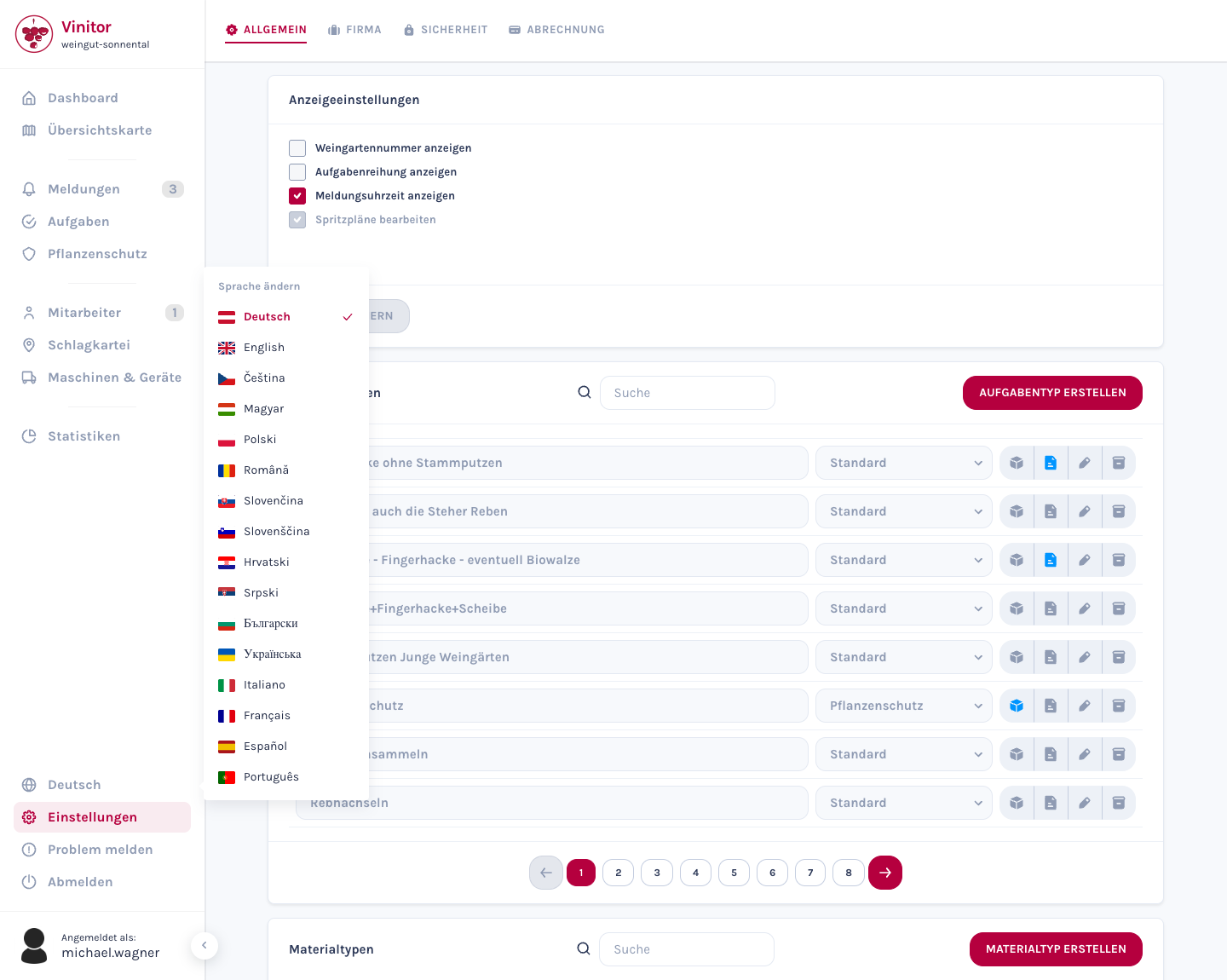
Section titled “Language”Vinitor is available in 16 languages. The language picker is not a settings tab — it sits directly in the sidebar.
-
Open the language picker
In the sidebar, click the globe icon — you’ll find it directly above the Settings entry. The currently selected language is shown next to the icon.
-
Choose a language
The Change language window opens with all available languages. The active language is marked with a tick.
-
Done
The interface switches immediately — there is no need to reload the page.
Available languages
Section titled “Available languages”Every language appears in the list in its own spelling — a Romanian colleague looks for Română, not for Romanian:
| Language | Spelling in the list |
|---|---|
| German | Deutsch |
| English | English |
| Czech | Čeština |
| Hungarian | Magyar |
| Polish | Polski |
| Romanian | Română |
| Slovak | Slovenčina |
| Slovenian | Slovenščina |
| Croatian | Hrvatski |
| Serbian | Srpski |
| Bulgarian | Български |
| Ukrainian | Українська |
| Italian | Italiano |
| French | Français |
| Spanish | Español |
| Portuguese | Português |
What the language choice covers
Section titled “What the language choice covers”The language changes more than the labels: it also changes the number and date formats of the entire interface — including calendars and date fields:
| Deutsch | English | |
|---|---|---|
| Area | 1.234,5 ha | 1,234.5 ha |
| Date | 31.03.2026 | 31/03/2026 |
| Amount | 1.234,50 € | €1,234.50 |
The language applies per browser
Section titled “The language applies per browser”Your language choice is stored locally in the browser in which you make it. That has two practical consequences:
- Your colleagues are not affected — everyone chooses their own language.
- In this version the choice does not travel with your account. If you log in on a different computer, in a different browser or in a private window, set the language again there.
On first use, Vinitor selects the language automatically based on your browser setting, and falls back to German if that language is not available.
Security — Change password
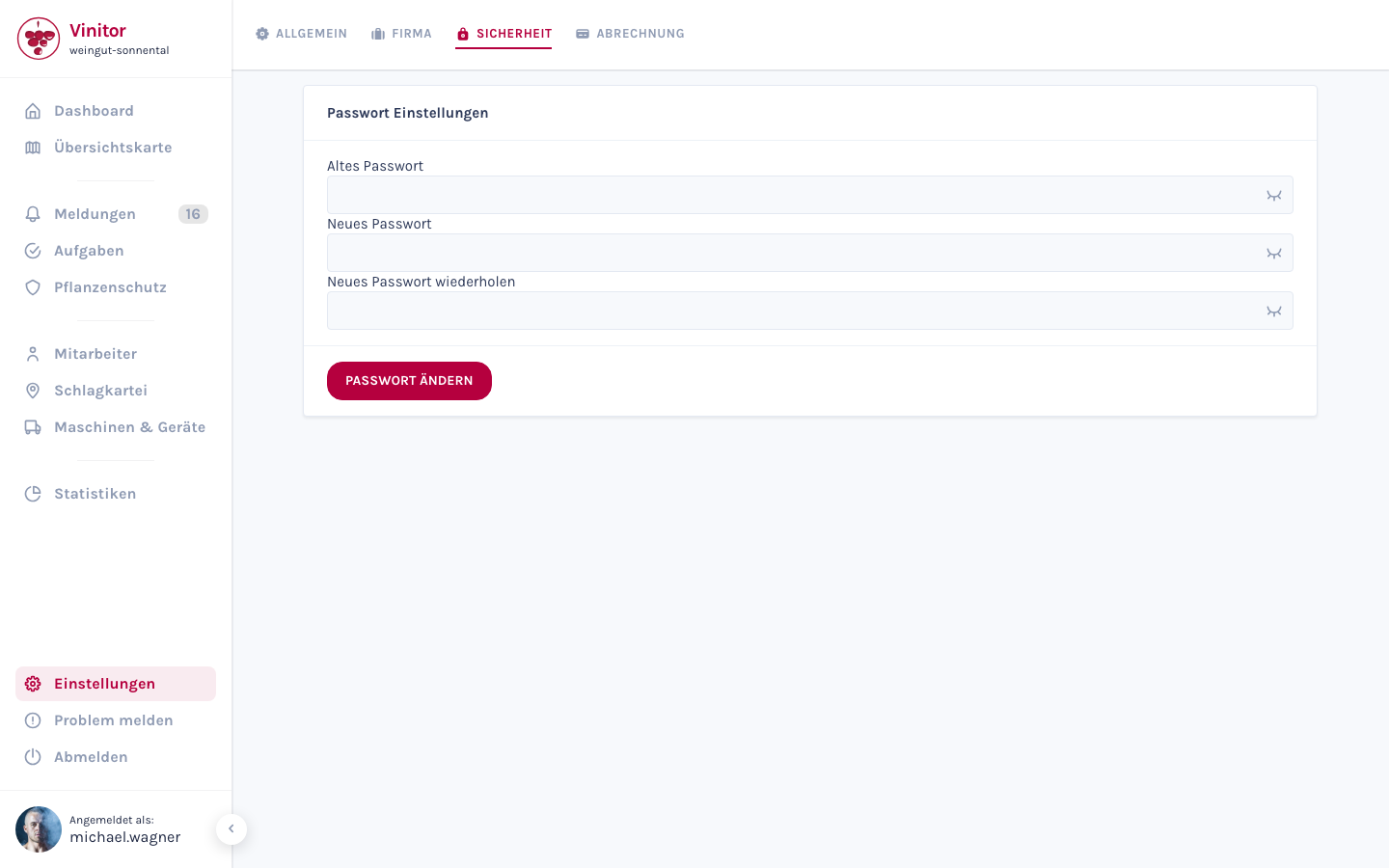
Section titled “Security — Change password”In the Security tab you can change your password.
-
Open the tab
Navigate to Settings and select the Security tab.
-
Enter your old password
Enter your current password.
-
Choose a new password
Enter your new password (at least 8 characters).
-
Repeat the new password
Confirm the new password by entering it again.
-
Save
Click Change password.
| Field | Description |
|---|---|
| Old password | Your current password for confirmation |
| New password | At least 8 characters |
| Repeat new password | Must match the new password |
Mobile app
Section titled “Mobile app”In the mobile app you will find settings under your profile picture.
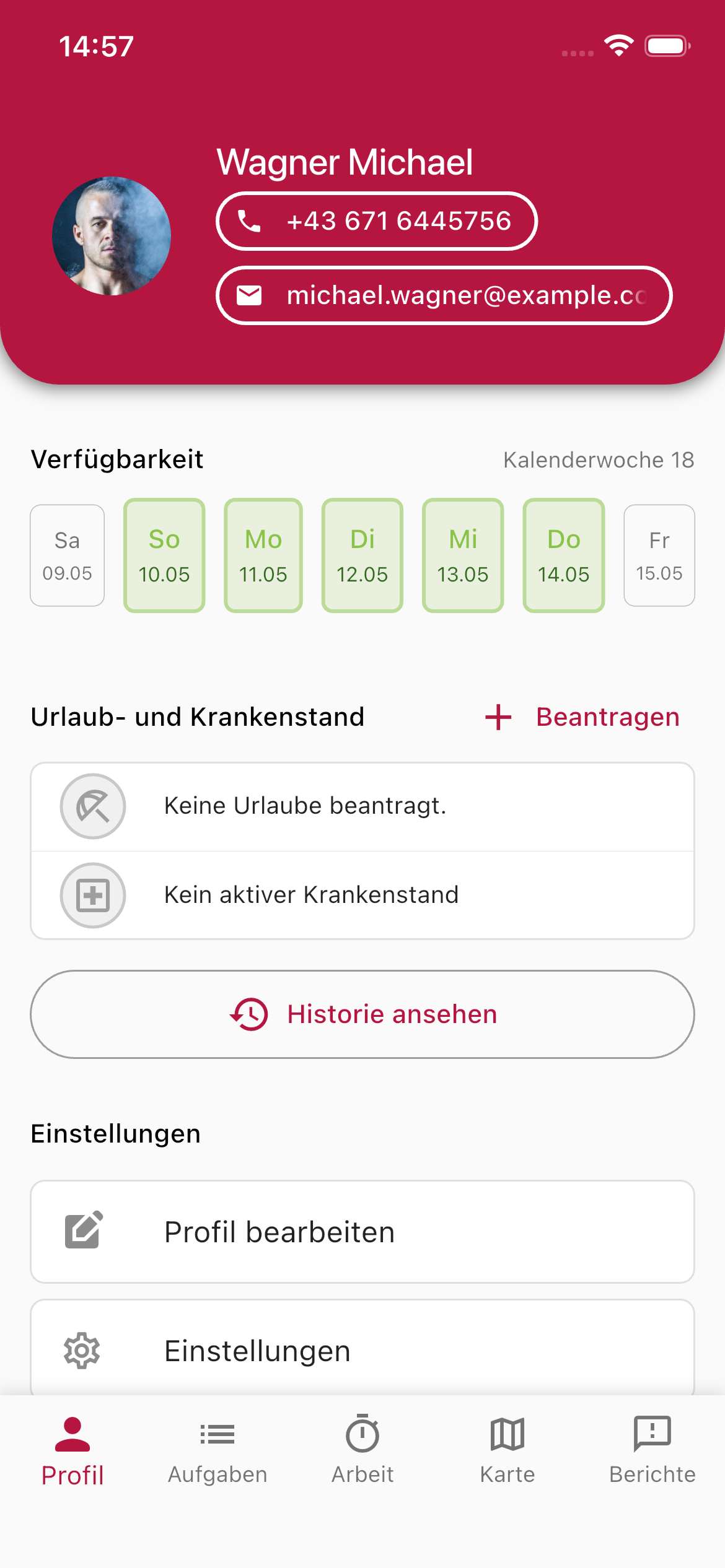
The mobile app offers the following options:
- Edit profile — Change name and profile picture
- Settings — App-specific settings
- Change password — Change password directly in the app
- Biometrics — Enable fingerprint or Face ID for login
- Help & Support — Contact the Vinitor team
- Report error — Report issues directly from the app
- Licence information — View open-source licences
Related pages
Section titled “Related pages”SUPPORT
Need help?
Our team is happy to help with any questions about Vinitor.