
Reports — Fields & status
Reports are geo-tagged observations that employees create directly from the vineyard via the mobile app. They serve to quickly report incidents such as pest infestations, weather damage or damaged infrastructure to the business manager — including photos and GPS position.
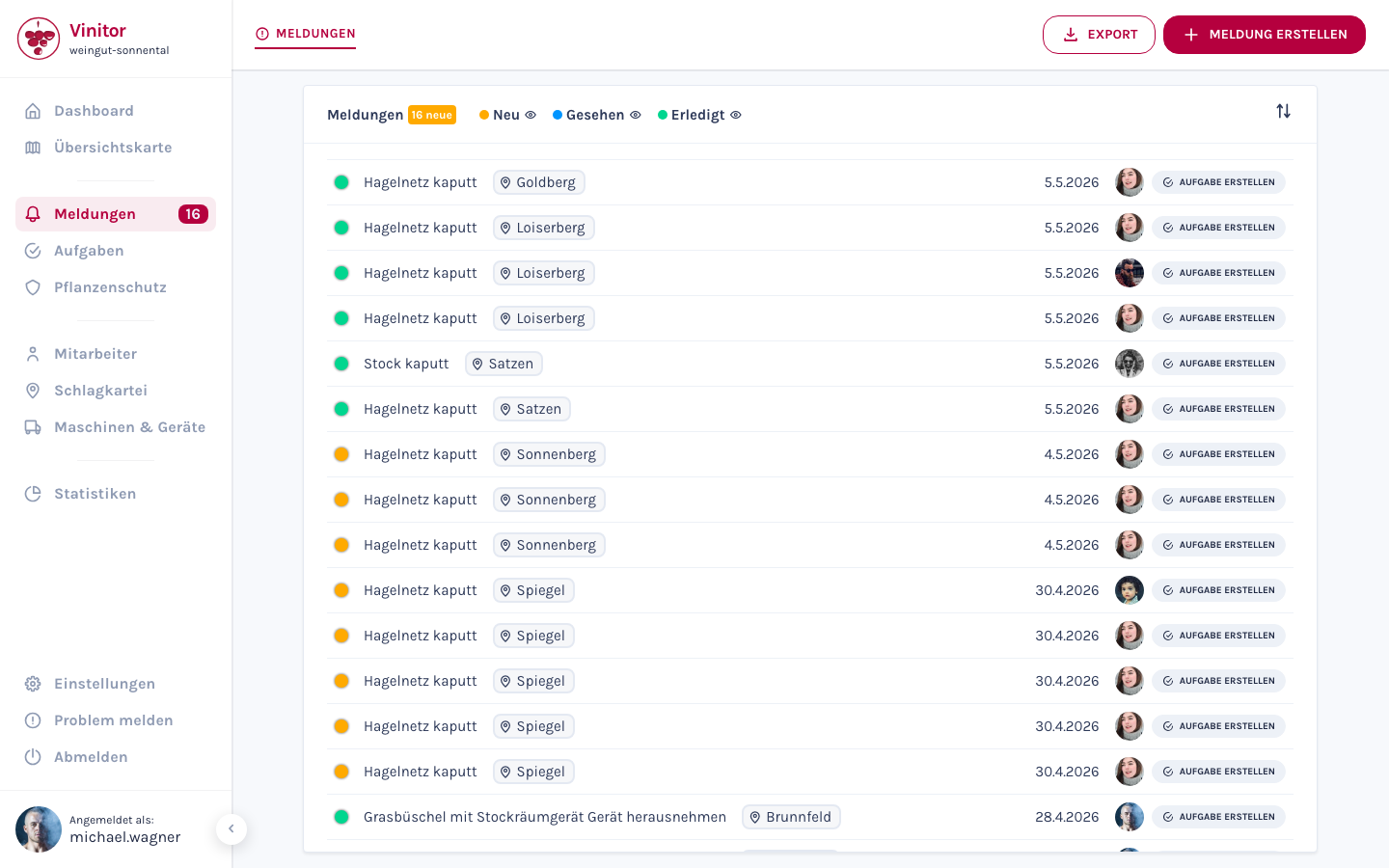
List view
Section titled “List view”The reports page displays all incoming reports in a list view. At the top you see the total number of reports and filter chips for the three status categories New, Seen and Done. You can show or hide individual categories using the eye icon next to each status.
Each row contains:
| Element | Description |
|---|---|
| Status dot | Coloured dot on the left — shows the current status (red, orange, green) |
| Title | Short description of the incident |
| Vineyard | Associated vineyard as a tag |
| Date | Creation date of the report |
| Creator | Avatar of the employee who created the report |
| Create task | Button to directly convert the report into a task |
Use the sort icon at the top right to change the sort order of the list. Use the Export and + Create report buttons at the top right to export reports as PDF or CSV or create a new report.
Status lifecycle
Section titled “Status lifecycle”Each report goes through three statuses:
| Dashboard | Mobile app | Colour | Description |
|---|---|---|---|
| New | Sent | Red | Report was created and waiting to be reviewed |
| Seen | Seen | Orange | Manager has reviewed the report |
| Done | Done | Green | Incident has been processed and completed |
Detail view
Section titled “Detail view”Click on a report in the list to open the detail view. At the top you see the title of the report as well as the Delete and Convert to task buttons.
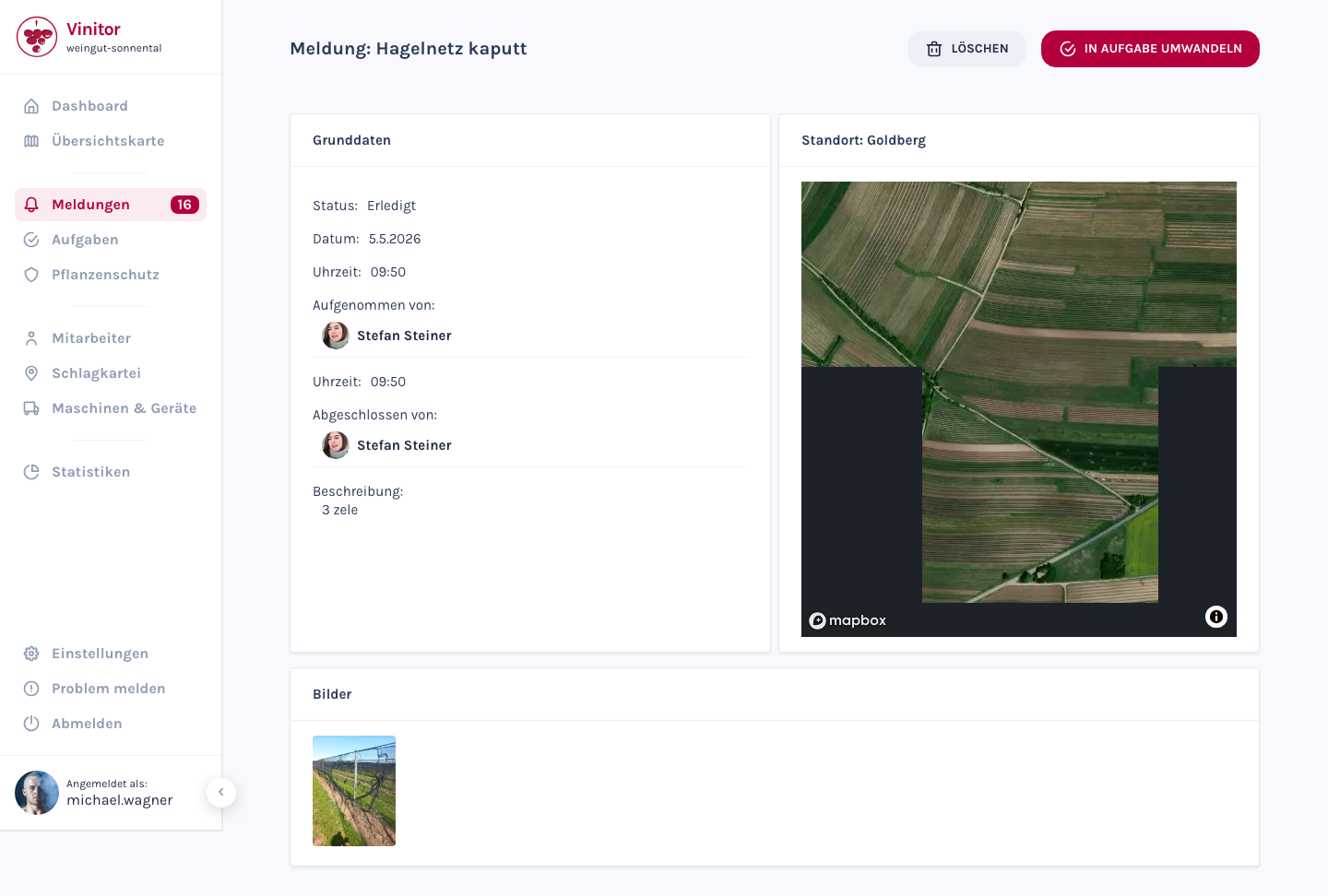
| Section | Content |
|---|---|
| Basic data | Status, date, time, creator, closer and description |
| Location | Map view with GPS position and associated vineyard |
| Images | Photos taken by the employee of the incident |
Convert to task
Section titled “Convert to task”A report can be directly converted into a task. This is useful when a reported incident requires follow-up work — e.g. the repair of a damaged hail net.
There are two ways:
- From the detail view — Click Convert to task at the top right.
- From the list — Click Create task in the respective row.
In both cases, the task creation form opens with pre-filled data from the report.
Permissions
Section titled “Permissions”Access to reports is controlled via roles:
| Permission | Description |
|---|---|
| REPORT_READ | Display reports |
| REPORT_WRITE | Create, edit and change status of reports |
Mobile app
Section titled “Mobile app”In the mobile app your employees have access to the following report functions:
- Search reports — Searchable list of all reports with search field.
- Only my reports — Toggle to show only own reports.
- Create report — Create new report with camera and automatic GPS capture.
- Automatic vineyard detection — If the employee is near a vineyard polygon, the vineyard is automatically suggested.
Related pages
Section titled “Related pages”SUPPORT
Need help?
Our team is happy to help with any questions about Vinitor.