
Edit a vineyard
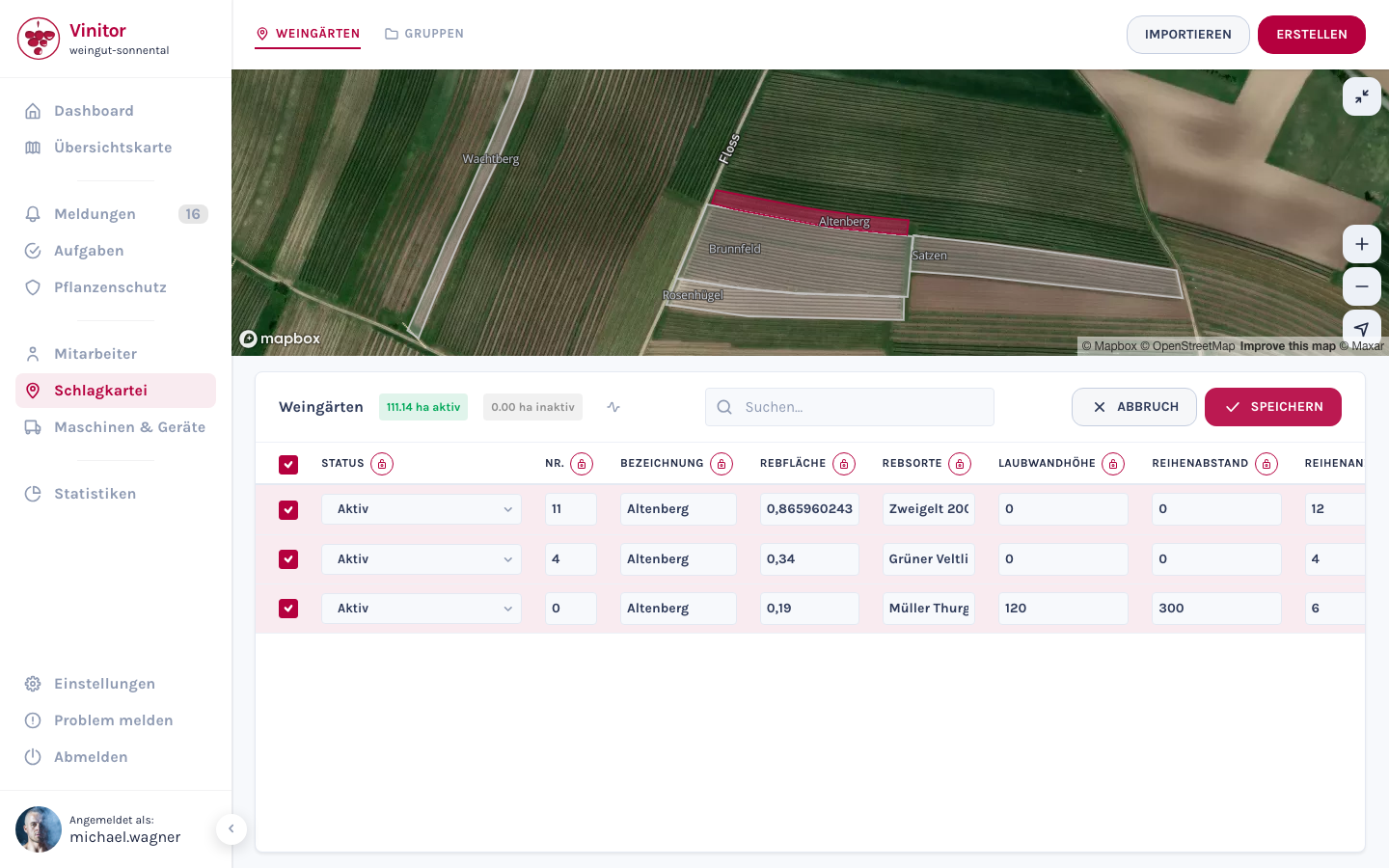
You can edit vineyards in two ways: via bulk editing directly in the field record book table, or via the detail view of an individual vineyard.
Bulk editing
Section titled “Bulk editing”Bulk editing is the fastest way to change master data for multiple vineyards at once — for example, adjusting the row spacing or leaf wall height for an entire site.
-
In the field record book, select one or more vineyards using the checkbox.
-
Click EDIT. The table switches to edit mode — all fields become editable.
-
Change the values you want directly in the table. Using the lock icon 🔒 next to a column heading, you can set that column’s value to the same value for all selected vineyards at once.
-
Click SAVE to apply all the changes.
Detail view
Section titled “Detail view”In the field record book, click Details next to a vineyard to open its detail view.
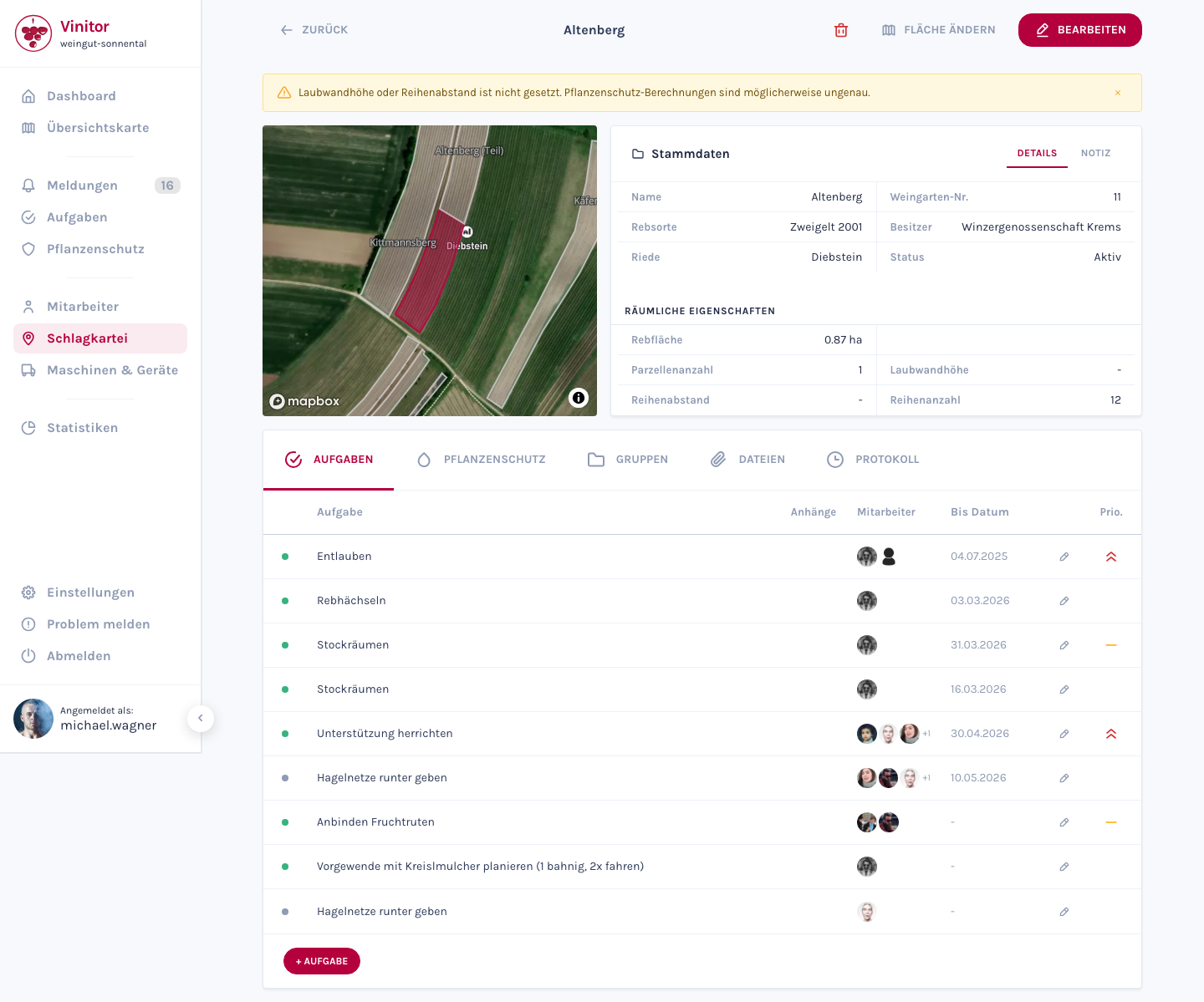
Upper section — master data (grape variety, Rieds, area, row spacing, leaf wall height, etc.) and the map view with the drawn polygon. Use Edit to change the master data.
Lower section — five tabs give you access to different aspects of the vineyard:
| Tab | Content |
|---|---|
| Tasks | All tasks assigned to this vineyard |
| Plant protection | Spray logs and plant protection measures |
| Groups | The vineyard’s group memberships |
| Files | Attached documents, photos and files |
| Log | Change history of all edits |
Change status
Section titled “Change status”Every vineyard has a status: Active or Inactive. The status primarily controls billing and usage calculations — inactive vineyards are excluded from the business’s total vine area and are no longer available for task assignment, spray plans or reports. The vineyard itself and all historical data (tasks, logs, plant protection) are fully retained. You can set the status back to Active at any time to use the vineyard again.
Edit the map geometry
Section titled “Edit the map geometry”You can adjust a vineyard’s drawn area (polygon) at any time:
-
In the detail view, click Change area. The map editor opens.
-
Edit polygon — Move the corner points of the existing polygon to adjust the boundaries. Or draw a completely new polygon.
-
Optional: switch between Draw manually and Cadastral data to load official cadastral areas as a reference.
-
Click Save. The vine area is recalculated automatically from the new geometry.
Split a vineyard
Section titled “Split a vineyard”If you want to split an existing vineyard into two parts — for example because part of it was sold or planted with a different grape variety — you can use the split function in the map editor. This creates a new vineyard and divides the area between the original and the new vineyard. Master data such as grape variety, Rieds, row spacing and leaf wall height is carried over automatically.
Delete a vineyard
Section titled “Delete a vineyard”To delete a vineyard, click the Delete button in the detail view and confirm the action.
SUPPORT
Need help?
Our team is happy to help with any questions about Vinitor.