
Create report
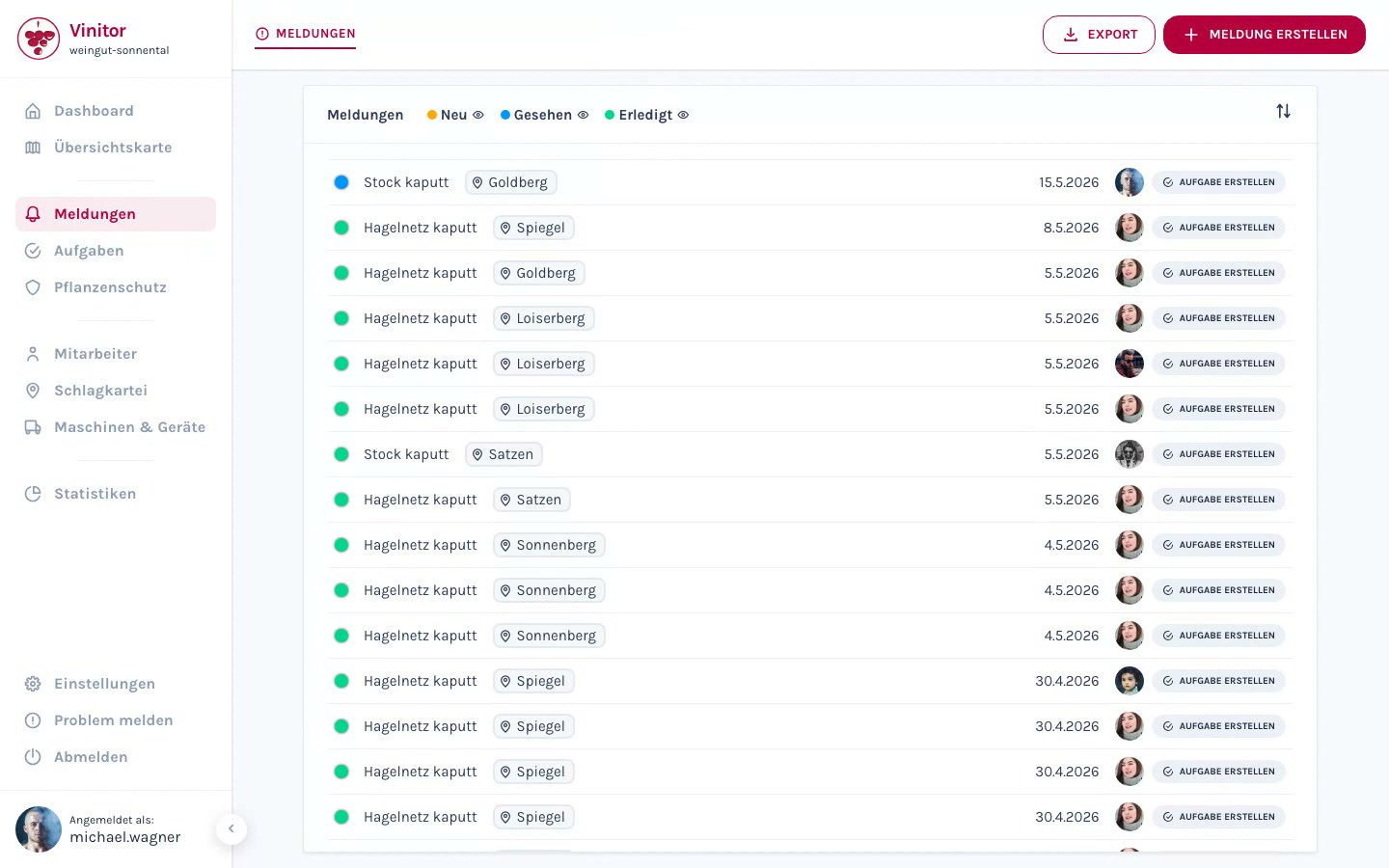
Reports can be created both via the dashboard and via the mobile app. In the dashboard, managers create reports manually using a form. In the mobile app, employees record reports directly in the field — with an automatic GPS position and camera function.
Create in the dashboard
Section titled “Create in the dashboard”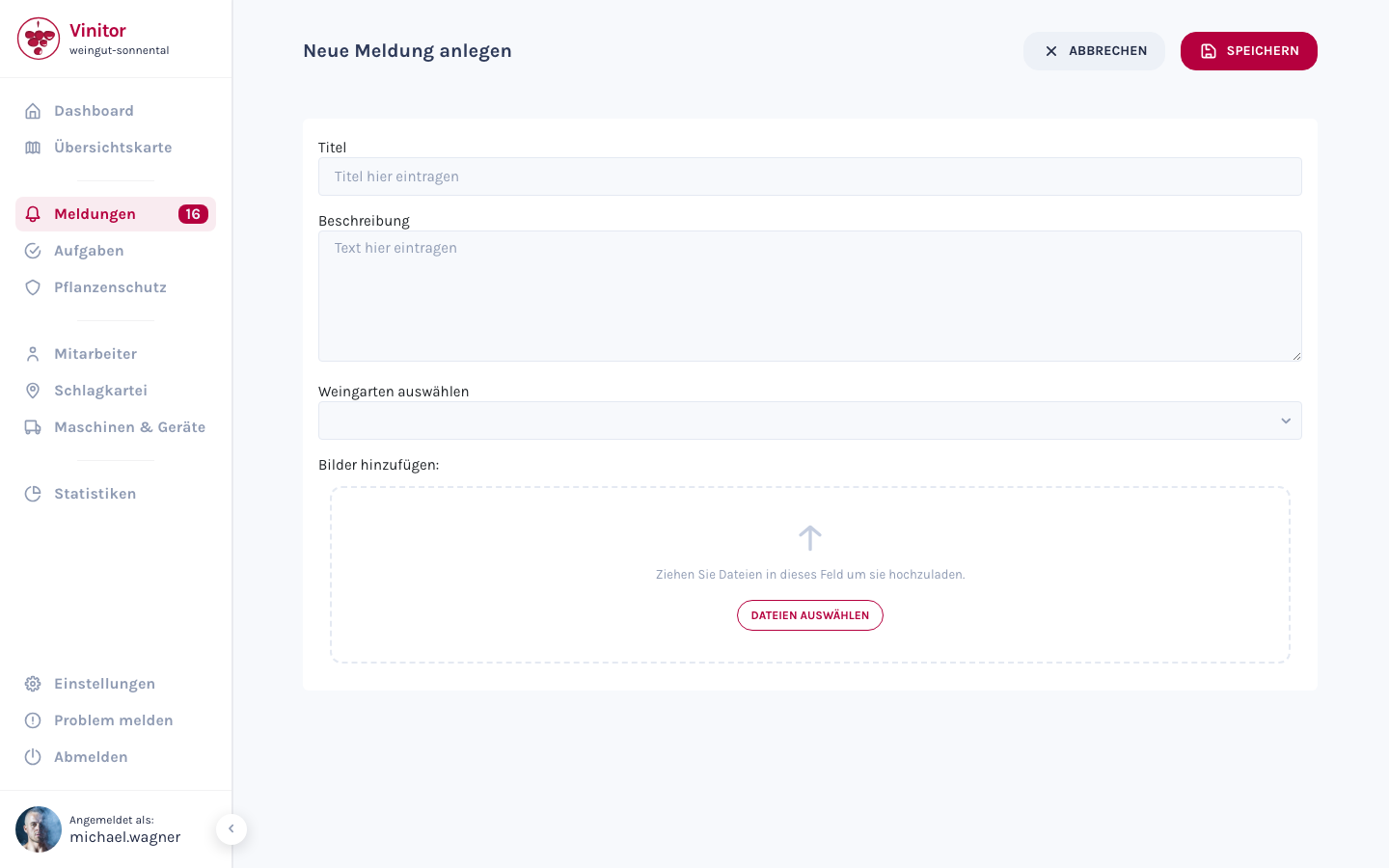
-
Open the reports page
In the sidebar, navigate to Reports. You’ll see the list of all reports received.
-
Click Create
Click + Create report in the top right. The creation form opens.
-
Enter a title
Enter a meaningful title that briefly describes the incident (e.g. “Hail net damaged” or “Pest infestation, Riesling”).
-
Add details
Optionally add a description, select the affected vineyard from the dropdown, and upload images by dragging files into the upload area or clicking Select files.
-
Save
Click Save. The report appears in the list with the status New.
Create in the mobile app
Section titled “Create in the mobile app”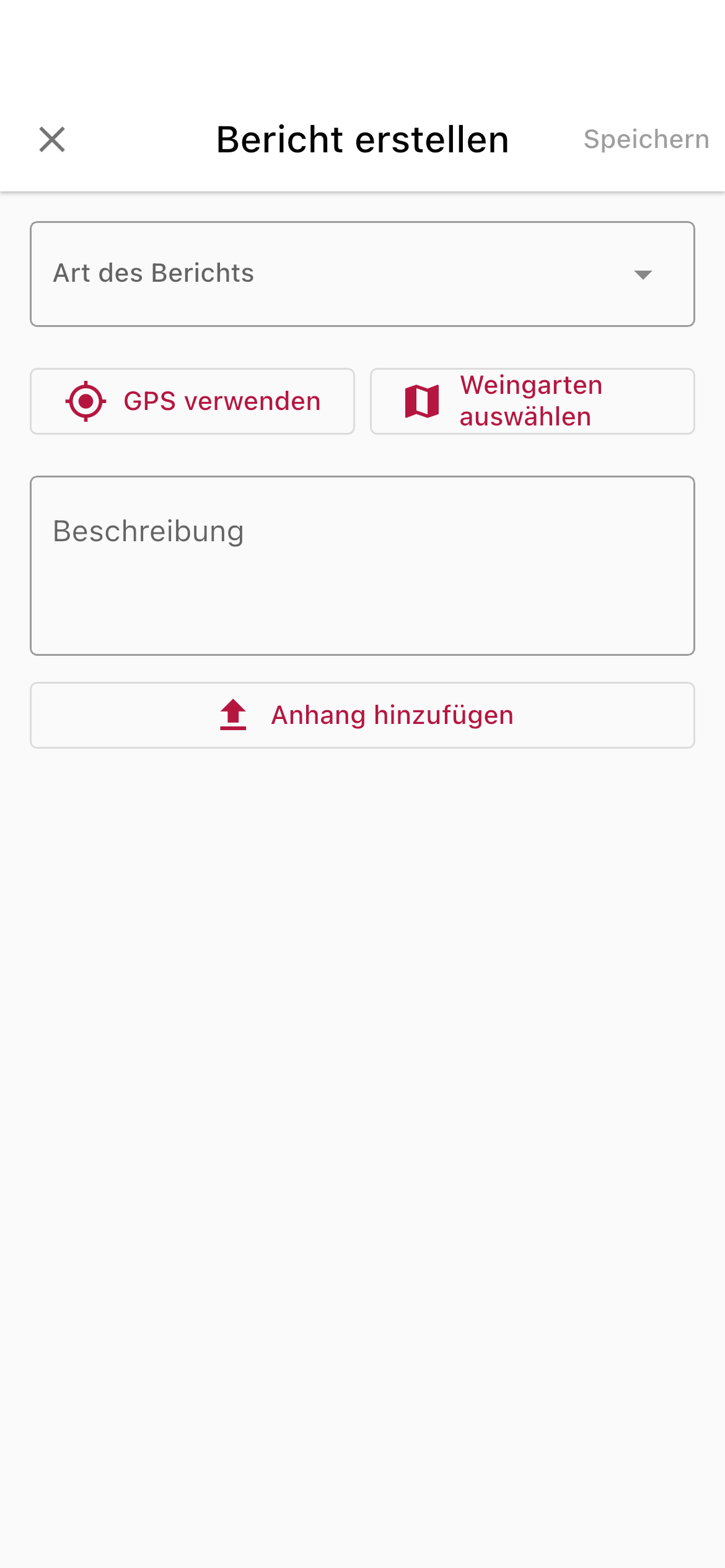
-
Open the Vinitor app
Open the Vinitor app on your smartphone and navigate to the Reports area.
-
Create a new report
Tap the button to create a new report.
-
Enter a title
Enter a short, meaningful title for the incident.
-
Add a description
Optional: describe the incident in more detail in the description field.
-
Take a photo
Optional: take a photo of the incident with the camera, or select an existing image from the gallery.
-
Send
Tap Send. The GPS position is recorded automatically and the report is submitted to the dashboard. There, it appears with the status New (shown in the app as Sent).
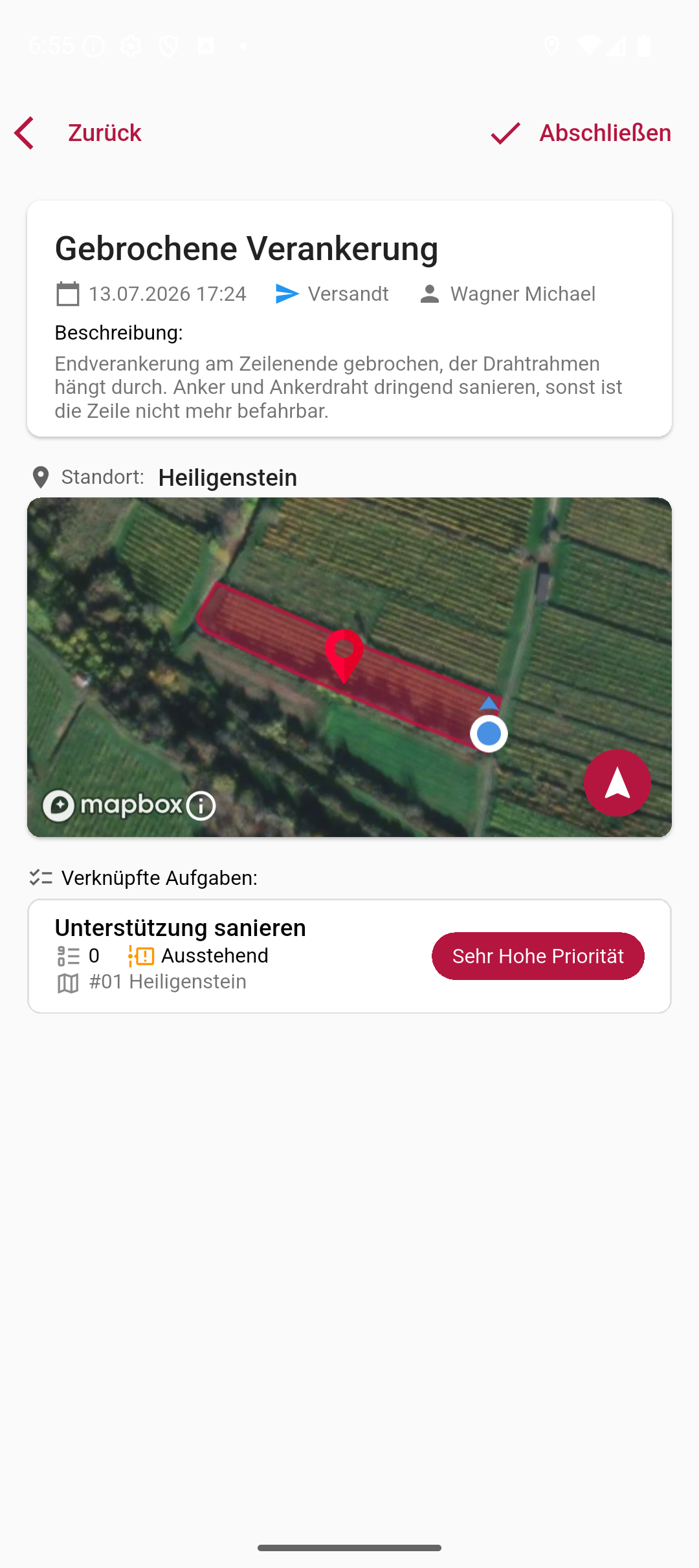
In a report’s detail view, you’ll see the recorded GPS position on the map, as well as the tasks linked to the report:
Field reference
Section titled “Field reference”| Field | Required | Description |
|---|---|---|
| Title | Yes | Brief description of the incident |
| Description | No | Detailed description of the incident |
| Vineyard | No | Assignment to a vineyard (dropdown in the dashboard, automatic in the app). The mobile app requires either the GPS position or a vineyard. |
| Images | No | Photos of the incident (upload in the dashboard, camera in the app) |
| GPS position | — | Recorded automatically in the mobile app; not available in the dashboard |
SUPPORT
Need help?
Our team is happy to help with any questions about Vinitor.