
Create users
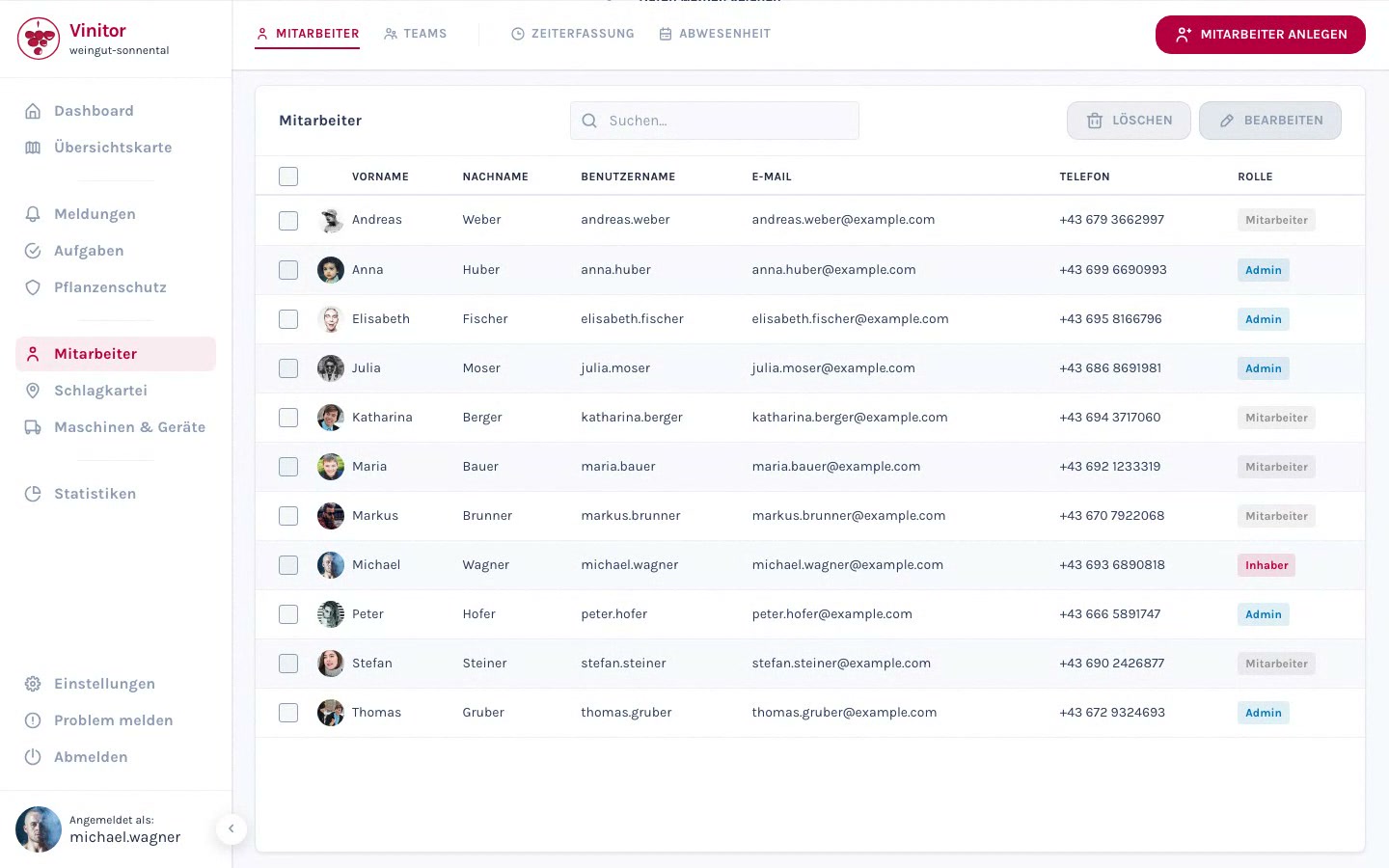
New users can be created in two ways: individually, via a dialog with profile picture upload, or several at once, via a tabular entry form.
Create a single user
Section titled “Create a single user”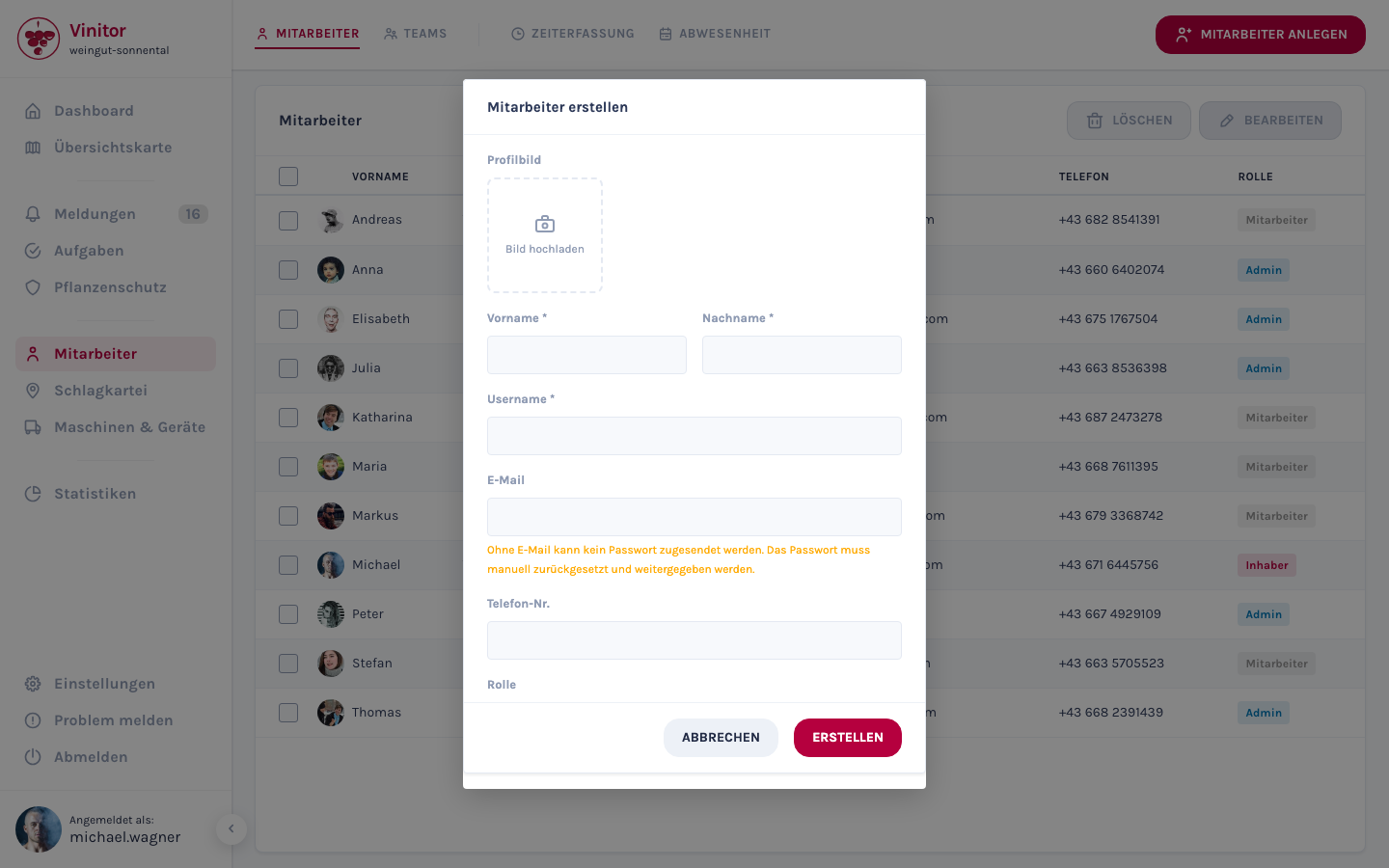
-
Navigate to Employees.
-
Click Create employee.
-
Upload a profile picture (optional) — click the image area, choose a photo, and adjust the crop in the image cropper.
-
Enter the first name and last name (required fields).
-
The username is generated automatically from the first and last name. You can adjust it manually (at least 3 characters, no @ or spaces).
-
Optionally enter an email address and phone number.
-
Select a role (Owner, Administrator, Lead, Employee). Which roles are available to choose from depends on your own role — see role hierarchy.
-
Click Create.
Field reference
Section titled “Field reference”| Field | Required | Description |
|---|---|---|
| Profile picture | No | Photo with image cropper (1:1 crop) |
| First name | Yes | The employee’s first name |
| Last name | Yes | The employee’s last name |
| Username | Yes | Automatically generated from first name + last name, can be adjusted manually. At least 3 characters, no @ or spaces. |
| No | Used for password delivery and contact. Must be unique. | |
| Phone no. | No | The employee’s phone number |
| Role | Yes | One of the four roles — determines the user’s hierarchy level |
Bulk creation
Section titled “Bulk creation”A tabular entry form is available for creating several users at once:
-
Navigate to Employees.
-
Click the arrow next to Create employee and select Create multiple.
-
Fill in the table — each row corresponds to a new user. The columns are: First name, Last name, Username, Email, Phone no., Role.
-
Click Add row to add further users to the table.
-
Click Create X (the number shows the count of rows).
Password and access
Section titled “Password and access”A password is automatically generated when a user is created:
- With an email address — the password is emailed to the user.
- Without an email address — the password is shown once after creation. Note it down and share it manually.
The password can be reset at any time in the user’s detail view.
Role assignment
Section titled “Role assignment”When creating a user, you select a role. The available roles depend on your own hierarchy level — you can only assign roles at or below your own level:
| Your role | Can assign |
|---|---|
| Owner | Owner, Administrator, Lead, Employee |
| Administrator | Administrator, Lead, Employee |
| Lead | Lead, Employee |
| Employee | — (no user management) |
For details on the roles and individual permissions, see Roles & permissions.
Permissions
Section titled “Permissions”| Permission | Description |
|---|---|
USER_WRITE | Required to create users |
Next steps
Section titled “Next steps”SUPPORT
Need help?
Our team is happy to help with any questions about Vinitor.