
Start GPS tracking
With GPS tracking, employees record their work paths in the mobile app. The recorded routes are matched against vineyard polygons to generate automatic task suggestions.
Prerequisites
Section titled “Prerequisites”- The mobile app is installed
- Location permission for the app is enabled — including for background use
- Vineyards are created with polygons (for task suggestions)
- TASK_WRITE (for the Work tab) and GPS_TRACKING_WRITE (for GPS tracking) permissions via the assigned role
Record GPS tracking
Section titled “Record GPS tracking”-
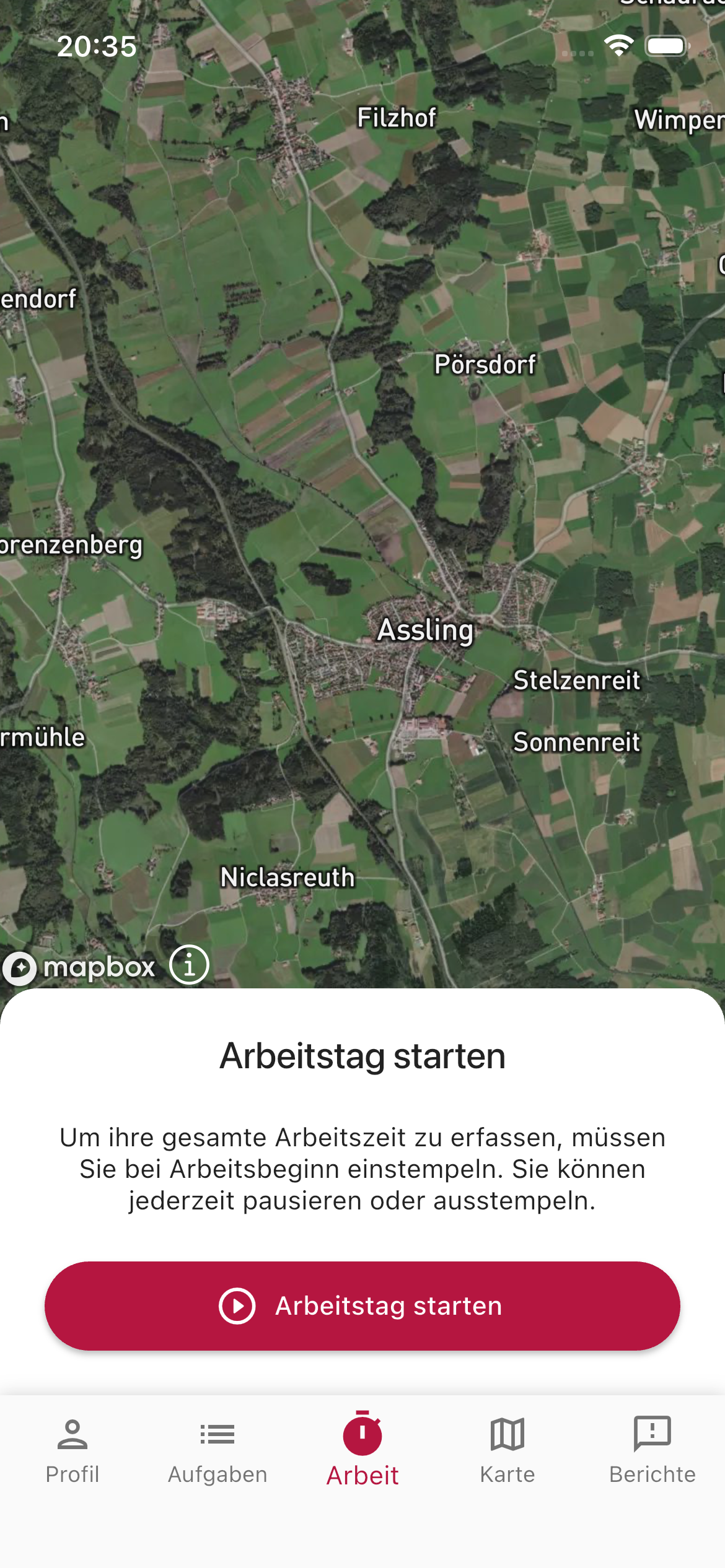
Start the workday
In the bottom navigation, tap the Work tab and start your working time with Start workday. The map shows your position and the business’s vineyards.
-
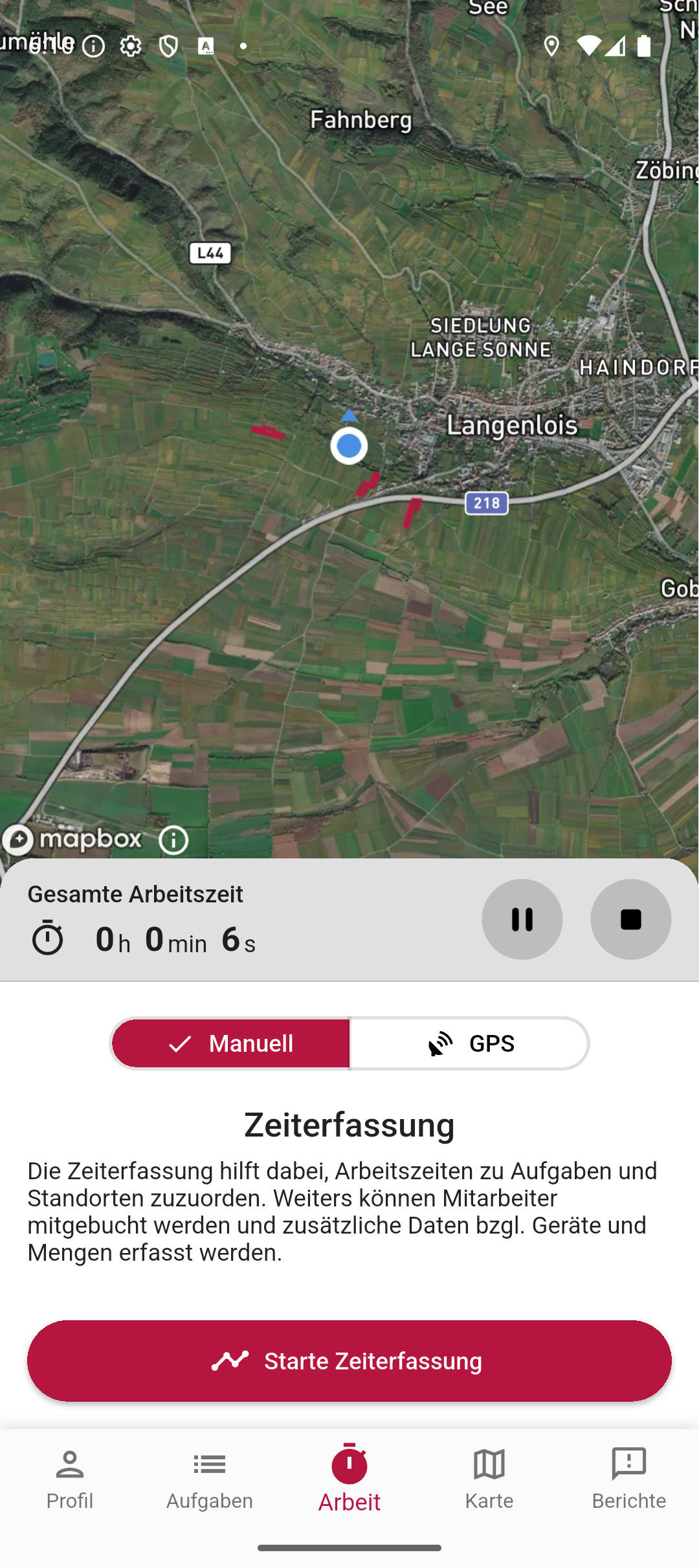
Select GPS mode
Once the workday is running, you’ll see the total working time and the Manual / GPS toggle. Tap GPS to select automatic time tracking.
-
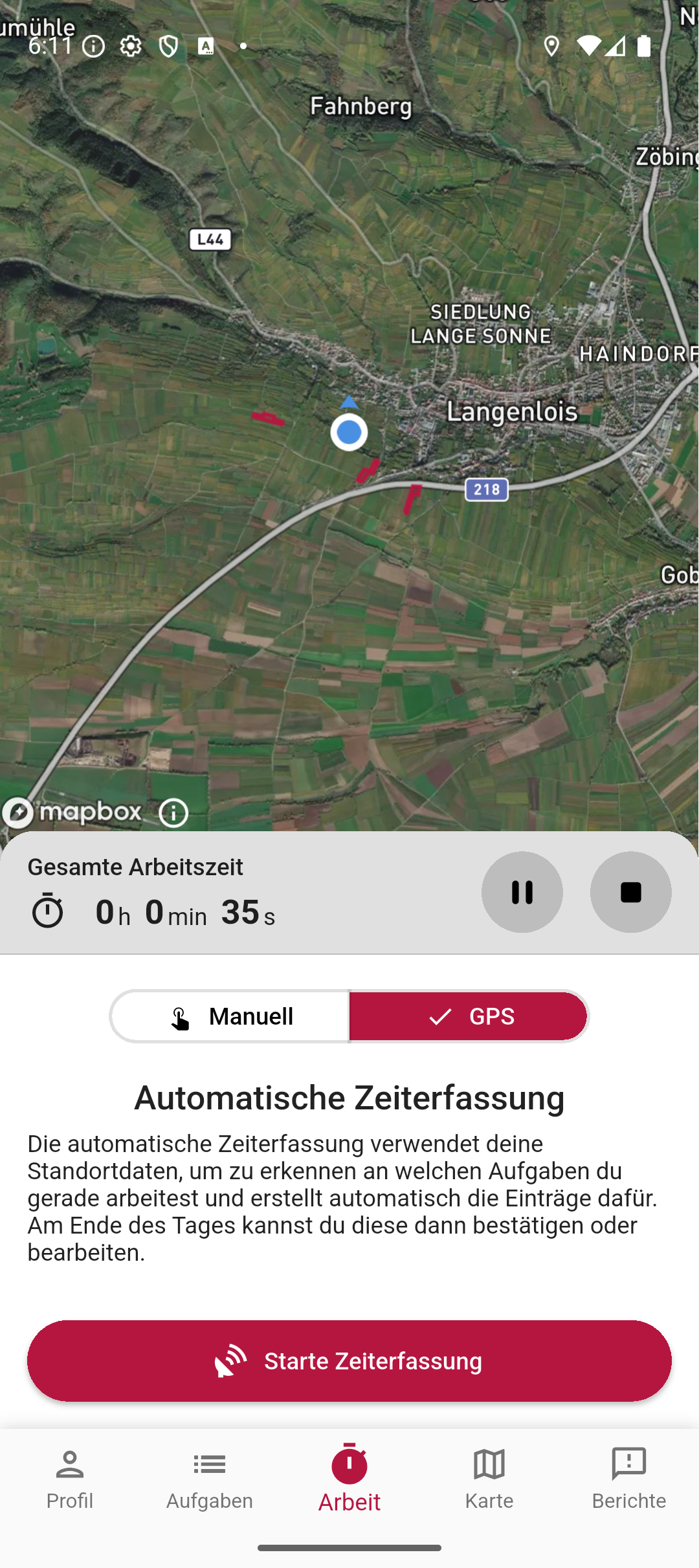
Start tracking
Tap Start time tracking. The app now records your position in the background.
-
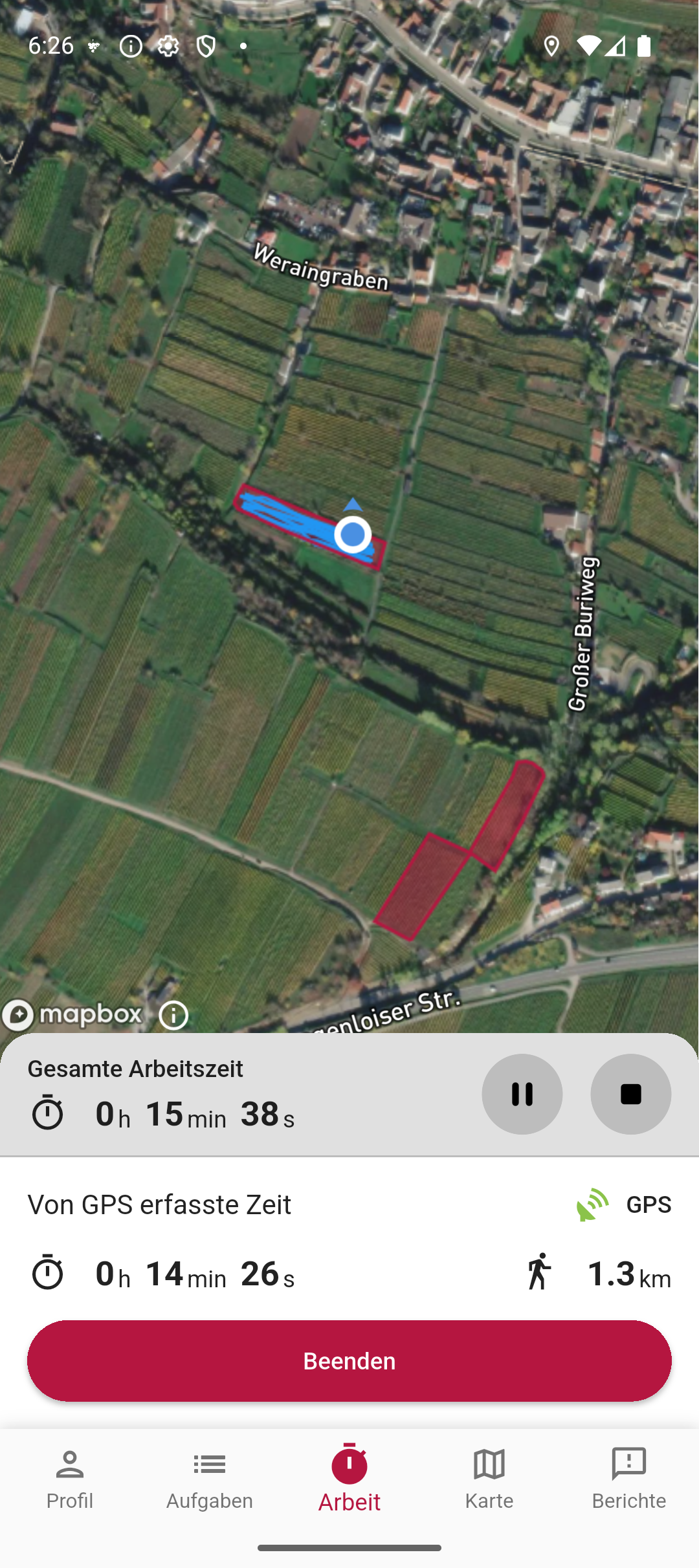
Work
Work in the vineyard as usual. The app continuously records your path — even when the screen is locked. On the map, you’ll see the path you’ve covered, the time recorded by GPS, and the distance covered.
-
Stop tracking
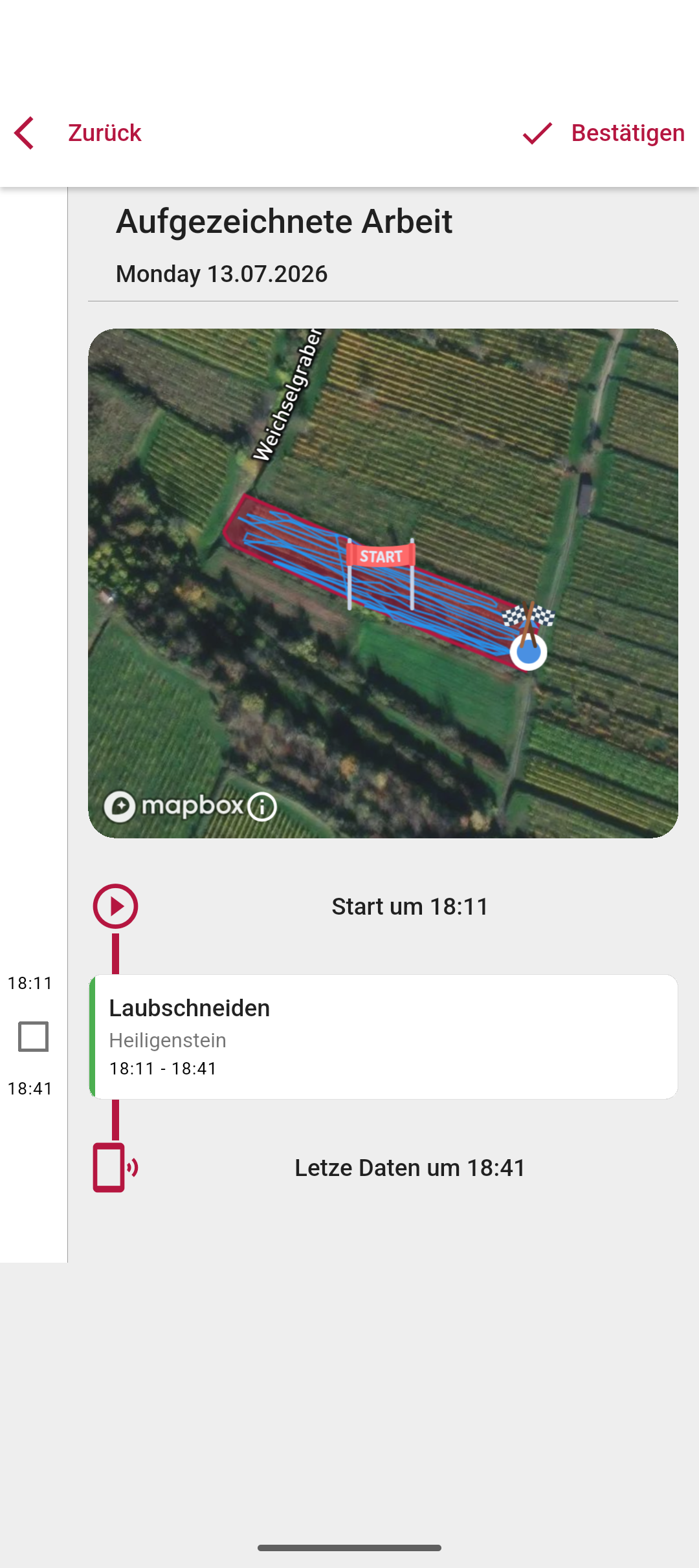
Tap Finish when the work is done. Vinitor matches the route against the vineyard polygons and shows the recorded work as a timeline — detected vineyards and matching tasks are assigned automatically.
Result
Section titled “Result”After stopping, the recorded route is displayed on the map and matched against the vineyard polygons. Vinitor automatically assigns matching open tasks and suggests alternatives — review and confirm the assignment as described under Use task suggestions. With Confirm, the recorded time is booked as a work log on the task.
Next steps
Section titled “Next steps”Related documentation
Section titled “Related documentation”SUPPORT
Need help?
Our team is happy to help with any questions about Vinitor.