
Layers & filters
In addition to task type colour-coding, the overview map offers two further features: damage reports as map markers, and multi-selection for actions on multiple vineyards at once. Both are activated via toggle buttons in the top bar.
Show damage reports
Section titled “Show damage reports”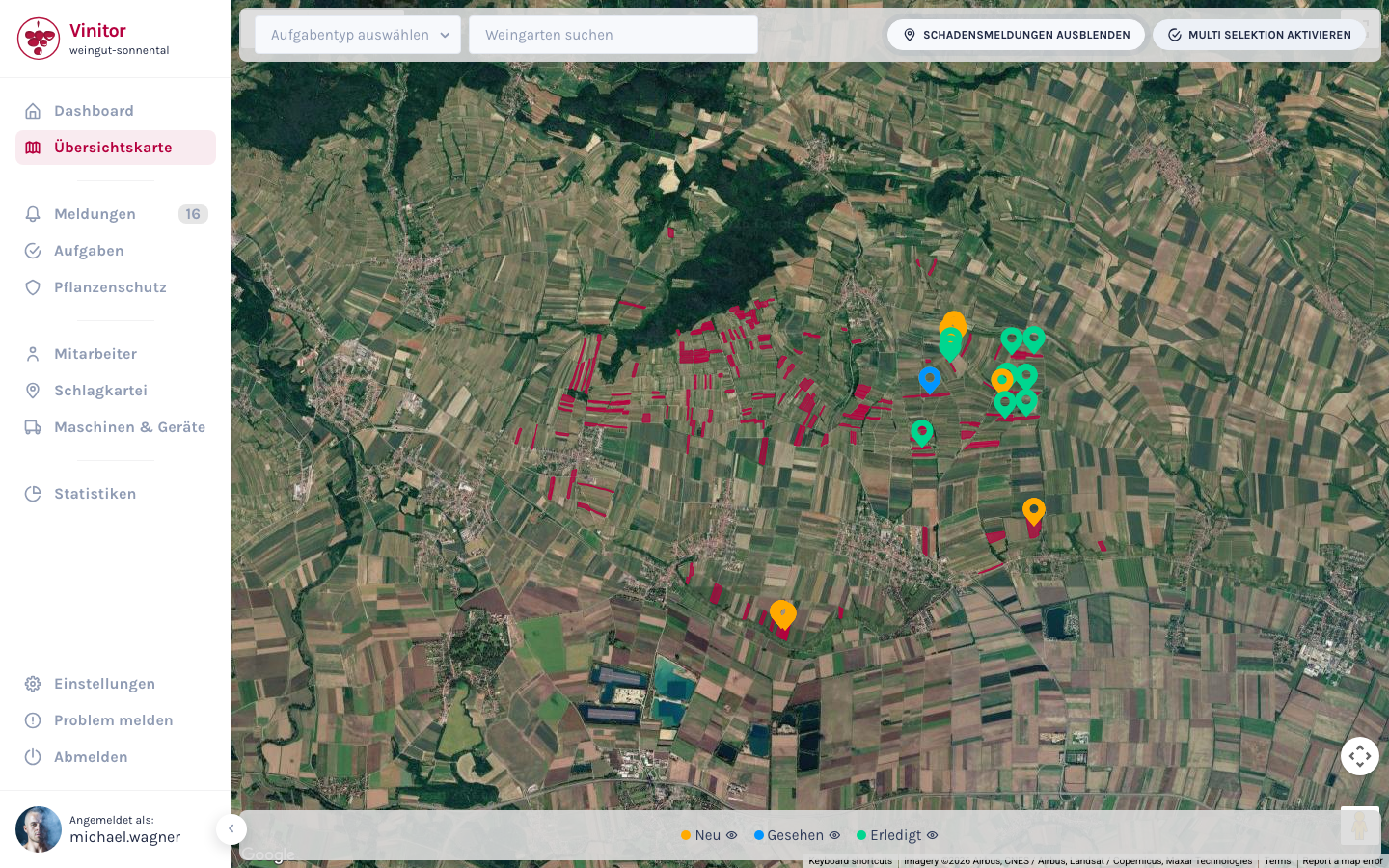
Use the Damage reports toggle button to show all incoming reports as coloured pins on the map. Below the map, a legend appears with the three report statuses (New, Seen, Done). Each status can be clicked individually to show only specific categories.
Clicking a report marker navigates directly to the report detail view.
Use multi-selection
Section titled “Use multi-selection”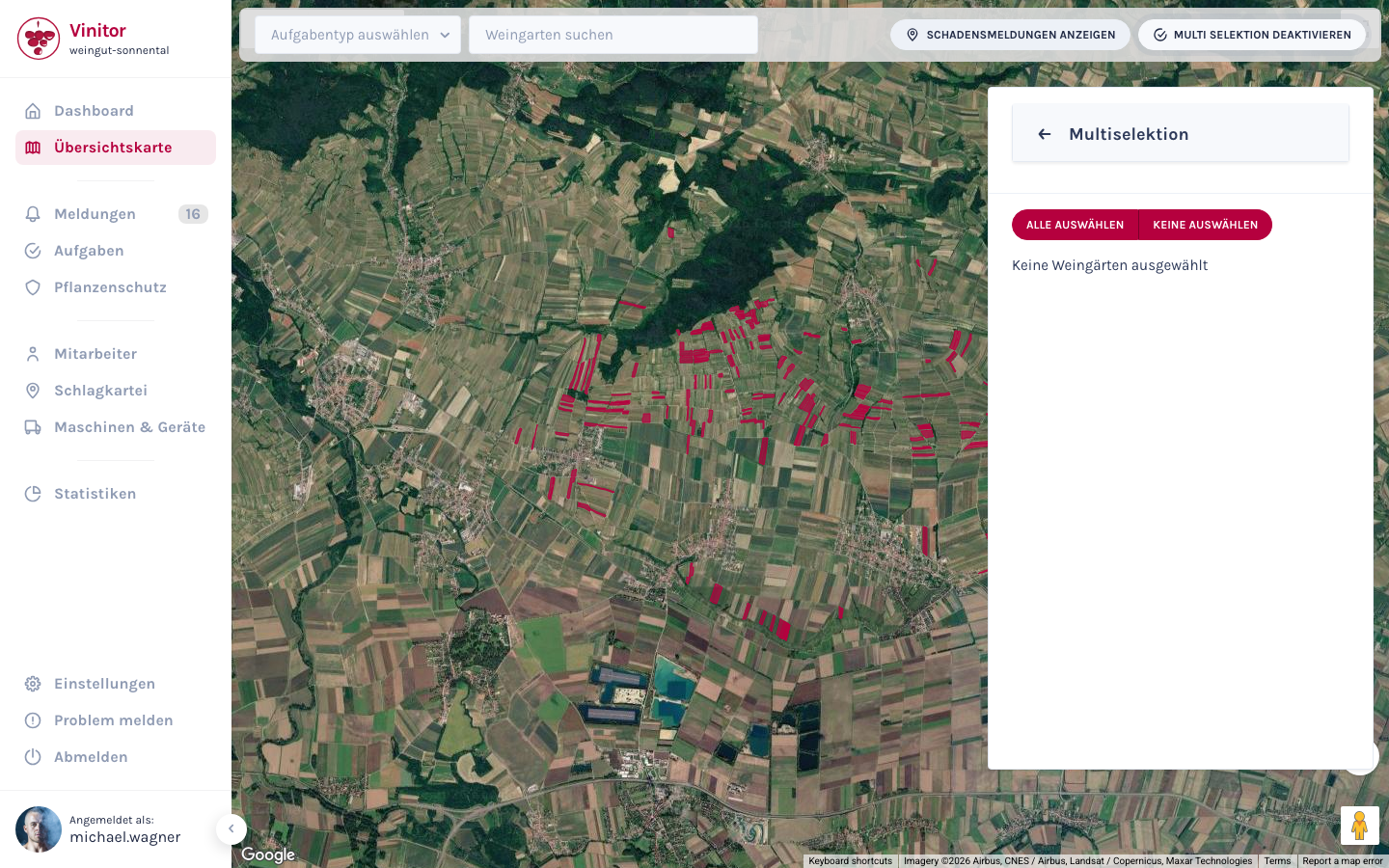
Use the Multi-selection toggle button to enable multiple-selection mode.
Click polygons to select or deselect them. Selected polygons are highlighted. A panel opens at the side with a list of all selected vineyards.
Two actions are available for the selected vineyards:
- Create tasks — creates a task assigned to all the selected vineyards.
- Create group — creates a vineyard group from the selected vineyards.
Result
Section titled “Result”With the map layers and multi-selection, you get a visual overview of damage reports and can efficiently create tasks and groups for multiple vineyards at once.
Next steps
Section titled “Next steps”Related documentation
Section titled “Related documentation”SUPPORT
Need help?
Our team is happy to help with any questions about Vinitor.