
GPS tracking
With GPS tracking employees record their work paths in the mobile app. The recorded routes are displayed on the map and matched against vineyard polygons to generate automatic task suggestions. GPS tracking is only available in the mobile app.
Prerequisites
Section titled “Prerequisites”| Prerequisite | Description |
|---|---|
| Mobile app | GPS tracking is only available via the mobile app |
| Location permission | The app needs permission for location tracking — also in the background |
| Vineyard polygons | For task suggestions, vineyards must be created with polygons |
| GPS_TRACKING_WRITE | The employee needs permission to start GPS tracking |
Tracking data
Section titled “Tracking data”After completing a GPS tracking session, the following data is recorded:
| Data | Description |
|---|---|
| Work path | The recorded route as a line on the map |
| Distance | Distance travelled in metres/kilometres |
| Duration | Duration of the tracking session |
| Task suggestions | Automatically generated suggestions based on vineyard overlap |
Map display
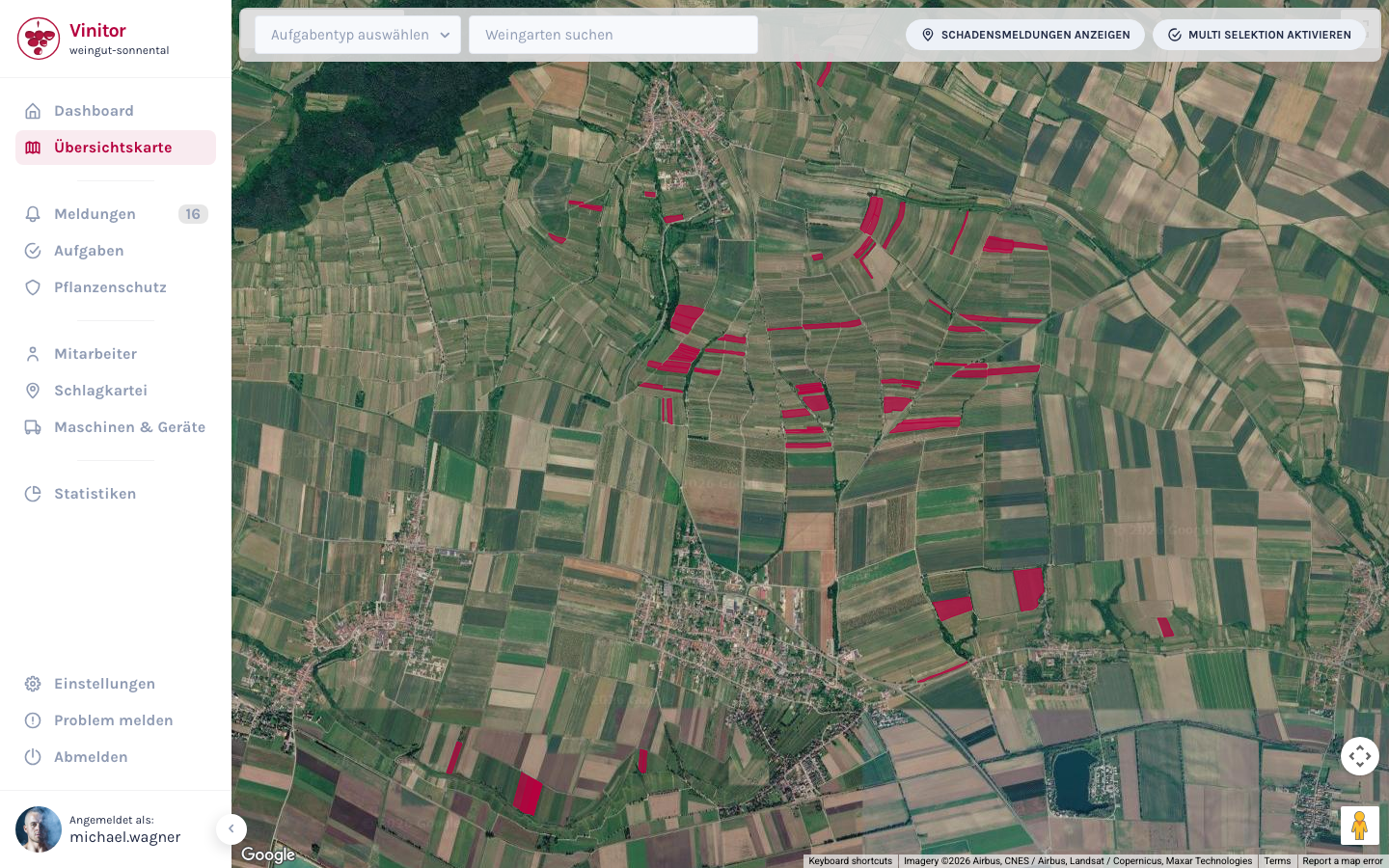
Section titled “Map display”GPS tracking data can be viewed in the map view. The recorded work paths are displayed as lines above the vineyard polygons.
Permissions
Section titled “Permissions”| Permission | Description |
|---|---|
| GPS_TRACKING_READ | View GPS tracking data and work paths |
| GPS_TRACKING_WRITE | Start and stop GPS tracking in mobile app |
Permissions are controlled via roles.
Notes on Android devices
Section titled “Notes on Android devices”Some Android manufacturers (e.g. Huawei, Samsung, Xiaomi, OnePlus) restrict background apps aggressively to save battery. This can cause GPS tracking to be interrupted when the app runs in the background. If GPS tracking is unreliable on your device, check the manufacturer-specific battery optimisation settings. An overview of the necessary adjustments can be found at dontkillmyapp.com.
Related guides
Section titled “Related guides”Related pages
Section titled “Related pages”SUPPORT
Need help?
Our team is happy to help with any questions about Vinitor.