
Annual leave & sick leave
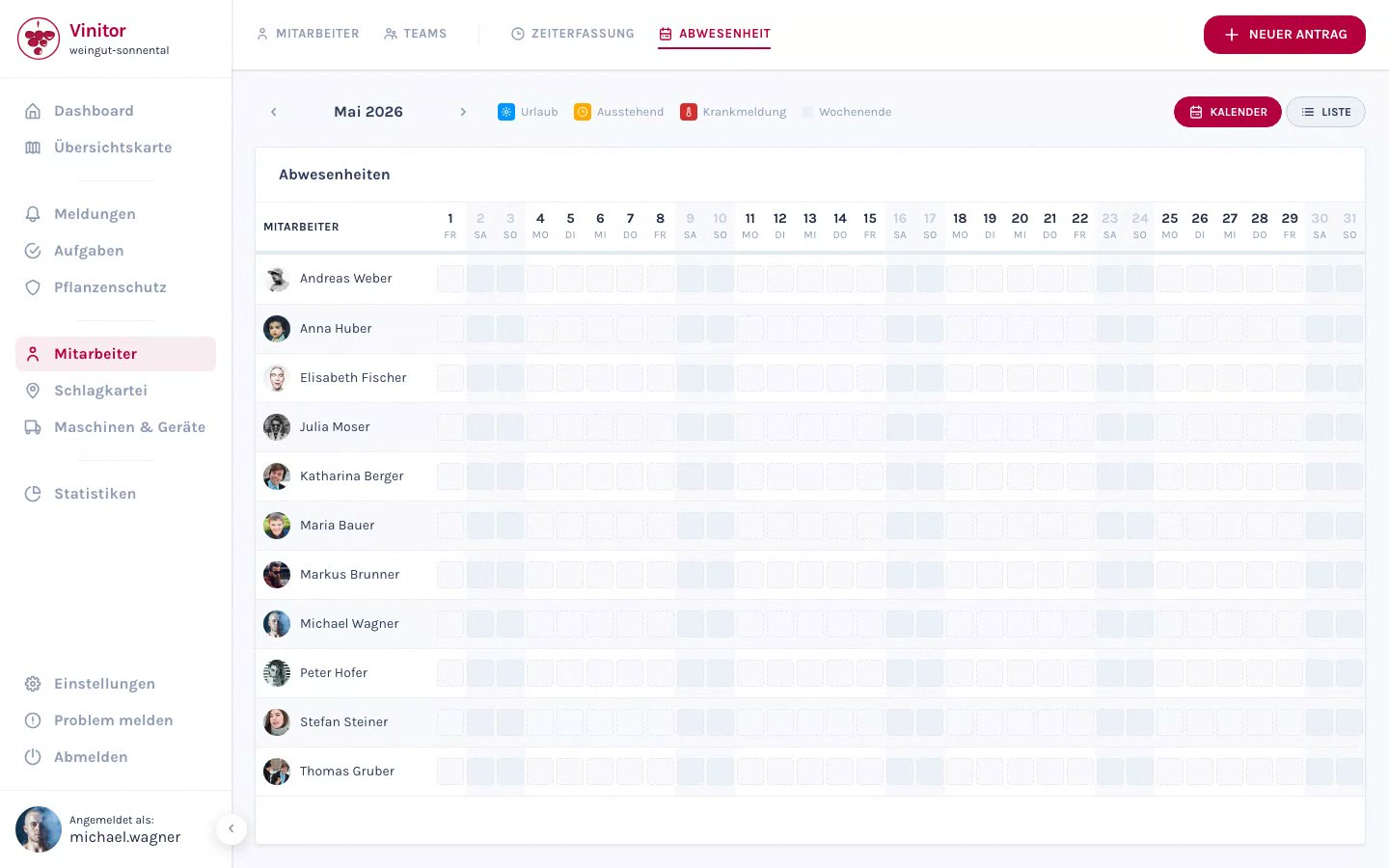
Absence management allows employees to submit leave and sick leave requests via the mobile app, and gives administrators a calendar overview of all absences in the dashboard.
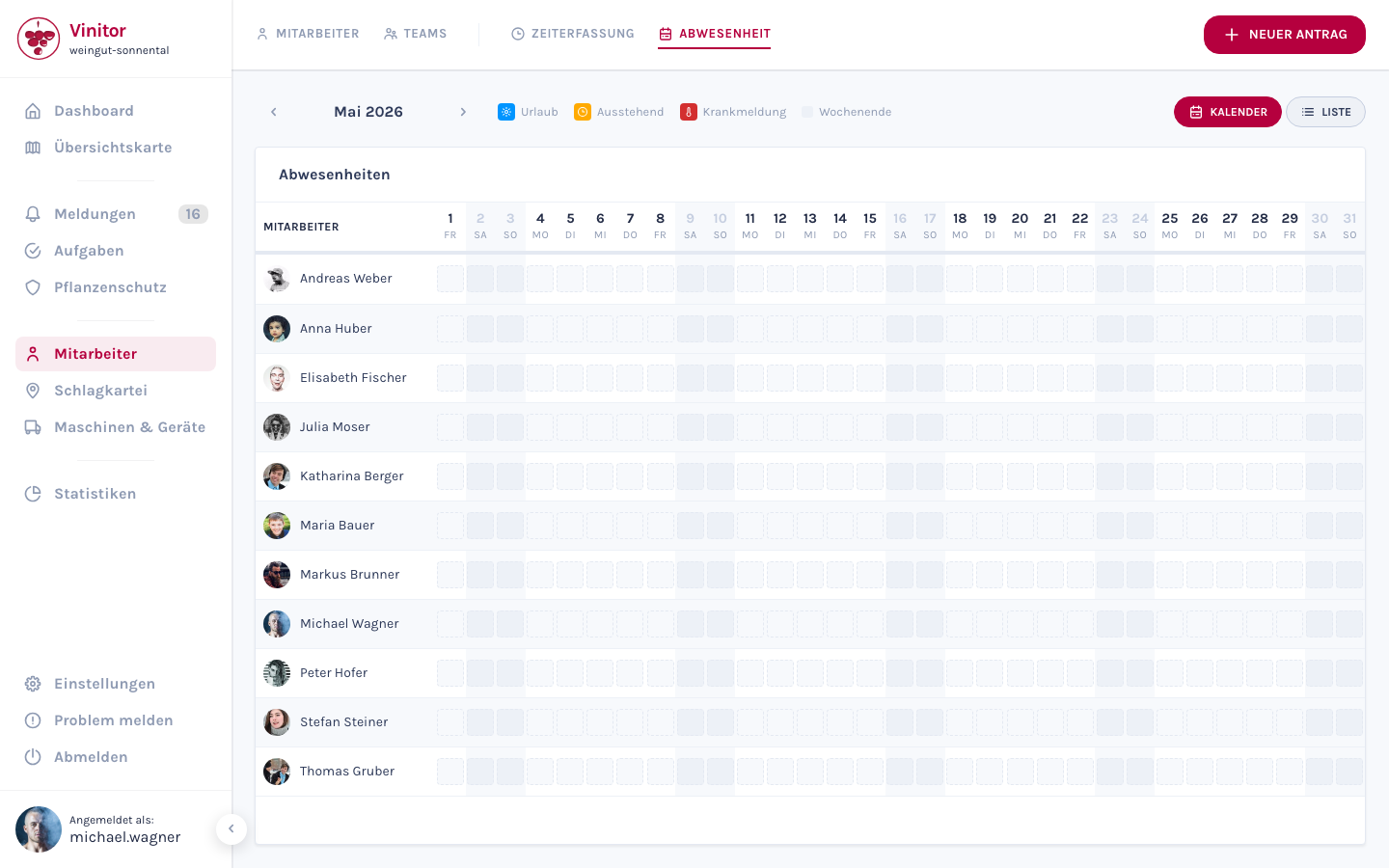
Calendar view
Section titled “Calendar view”The calendar view shows a grid with employees in the rows and days in the columns. Each entry is colour-coded:
| Colour | Meaning |
|---|---|
| Blue | Approved leave |
| Orange | Pending request (not yet approved) |
| Red | Sick leave |
| Grey | Weekend |
Use the CALENDAR / LIST toggle bar to switch between the calendar view and a tabular list view of all requests.
Using the + NEW REQUEST button, administrators can create a new leave or sick leave request for an employee directly in the dashboard.
Request lifecycle
Section titled “Request lifecycle”Every request goes through one of three statuses:
| Status | Description |
|---|---|
| Pending | The request has been submitted and is awaiting approval |
| Approved | The request has been approved by an administrator |
| Rejected | The request has been rejected — optionally with a reason |
Approve or reject requests
Section titled “Approve or reject requests”Administrators can process pending requests in the dashboard:
- Navigate to Employees → ABSENCE.
- Pending requests are marked orange in the calendar view.
- Click a pending request.
- Select Approve or Reject. If you reject a request, you can optionally add a reason.
Requesting leave in the mobile app
Section titled “Requesting leave in the mobile app”Employees submit leave requests via the mobile app:
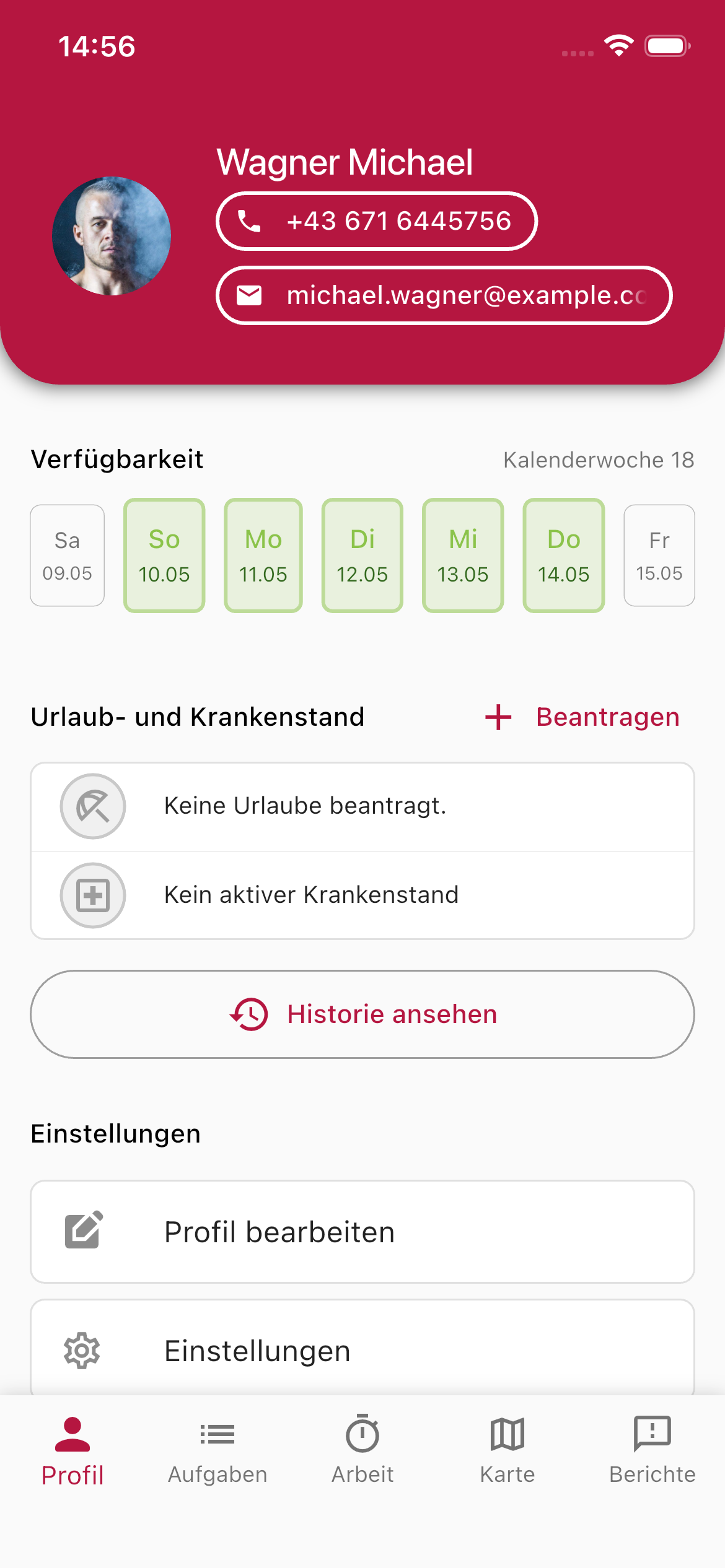
-
Open your profile
Tap the Profile tab in the bottom navigation.
-
Annual leave and sick leave
Scroll to the Annual leave and sick leave section.
-
Request
Tap + Request.
-
Select the type
Select the request type: Leave or Sick leave.
-
Set the period
Select the start and end date of the absence.
-
Add details
Optionally add a note or description.
-
Submit request
Confirm the request. It’s sent to the administrator for approval.
Sick leave
Section titled “Sick leave”Sick leave requests can be created in two ways:
- Employees — via the mobile app in the profile section, in the same way as a leave request (select the Sick leave type).
- Administrator — via + NEW REQUEST in the dashboard’s absence management. This is useful when an employee calls in sick by phone.
Permissions
Section titled “Permissions”| Permission | Description |
|---|---|
| LEAVE_REQUEST | Submit leave and sick leave requests |
| LEAVE_APPROVE | Approve or reject requests |
Next steps
Section titled “Next steps”SUPPORT
Need help?
Our team is happy to help with any questions about Vinitor.