
Files & attachments
You can attach files and documents to every vineyard — e.g. soil analyses, cadastral extracts, photos of vines or expert reports. This way you have all relevant documents available directly at the corresponding vineyard.
Supported file formats
Section titled “Supported file formats”| Category | Formats |
|---|---|
| Images | JPG, JPEG, PNG, GIF, SVG |
| Documents | |
| Office | Word (DOC, DOCX), Excel (XLS, XLSX), PowerPoint (PPT, PPTX) |
| Other | CSV, TXT, ZIP |
Upload files
Section titled “Upload files”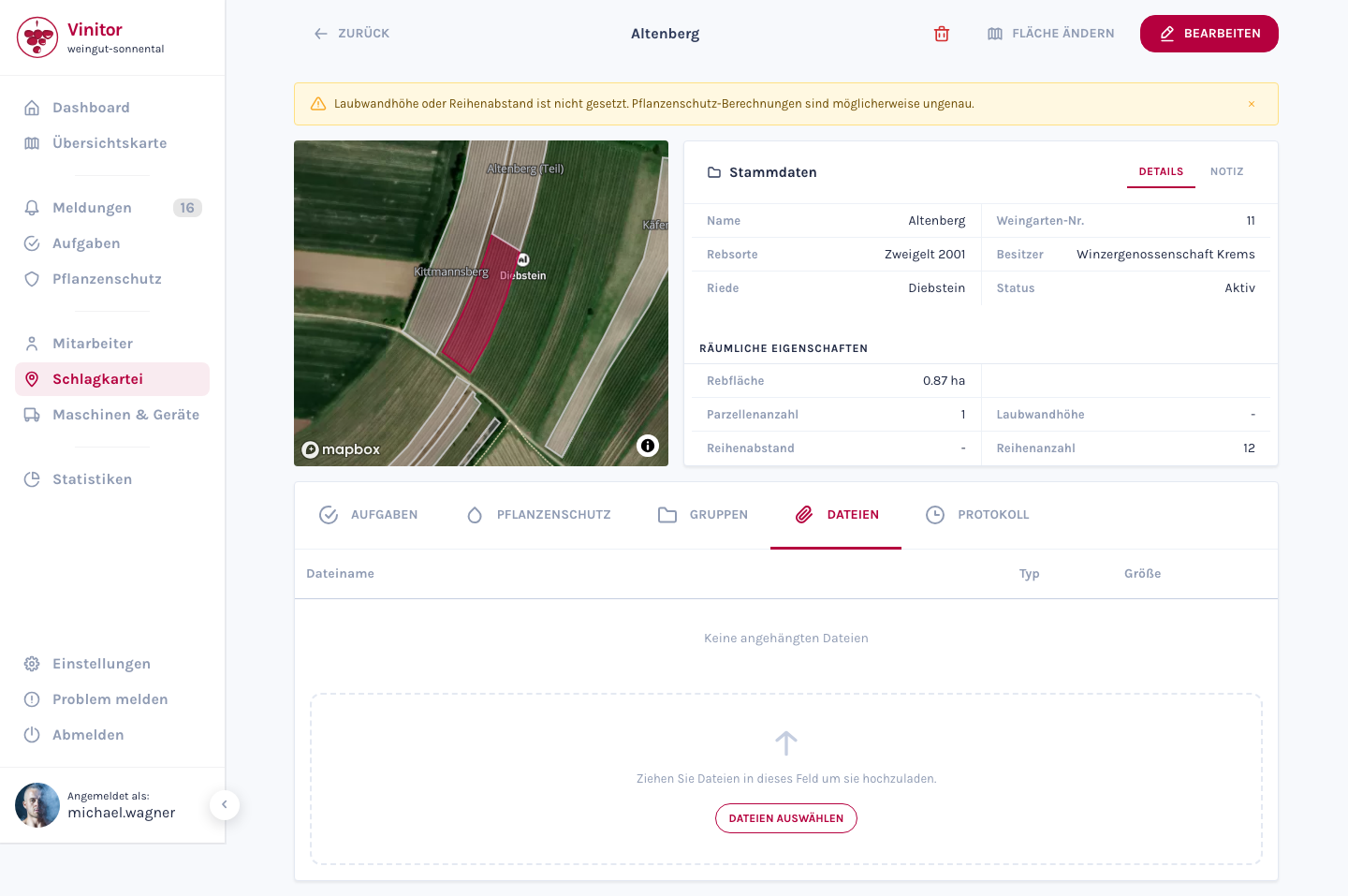
-
Open the detail view of a vineyard by clicking the vineyard you want in the field record book.
-
Switch to the Files tab.
-
Upload a file:
- Drag and drop — Drag a file directly into the upload area.
- Click — Click the upload area and select a file from your file system.
-
The file is uploaded and appears in the file list.
Manage files
Section titled “Manage files”For every file, the file list shows:
- File name with a file-type icon
- File size (in KB or MB)
The following actions are available for every file:
- Download — Click the file to open it in a new tab, or download it.
- Delete — Click the delete icon next to the file. A confirmation dialog protects against accidental deletion.
SUPPORT
Need help?
Our team is happy to help with any questions about Vinitor.
Available Mon–Fri, 8am–5pm