
Employees — List & management
Employee management is the central hub for everything related to your team in Vinitor. Here you create user accounts, assign roles and permissions, organise employees in teams and keep track of working hours and absences.
Four sections
Section titled “Four sections”The employee page is divided into four tabs:
| Tab | Description |
|---|---|
| Employees | List of all users with contact details and roles — here you create, edit and archive accounts |
| Teams | Team overview with team lead and members |
| Time tracking | Monthly overview with target/actual comparison, chart and export functions |
| Absence | Calendar and list view for leave and sick leave with approval workflow |
Employee list
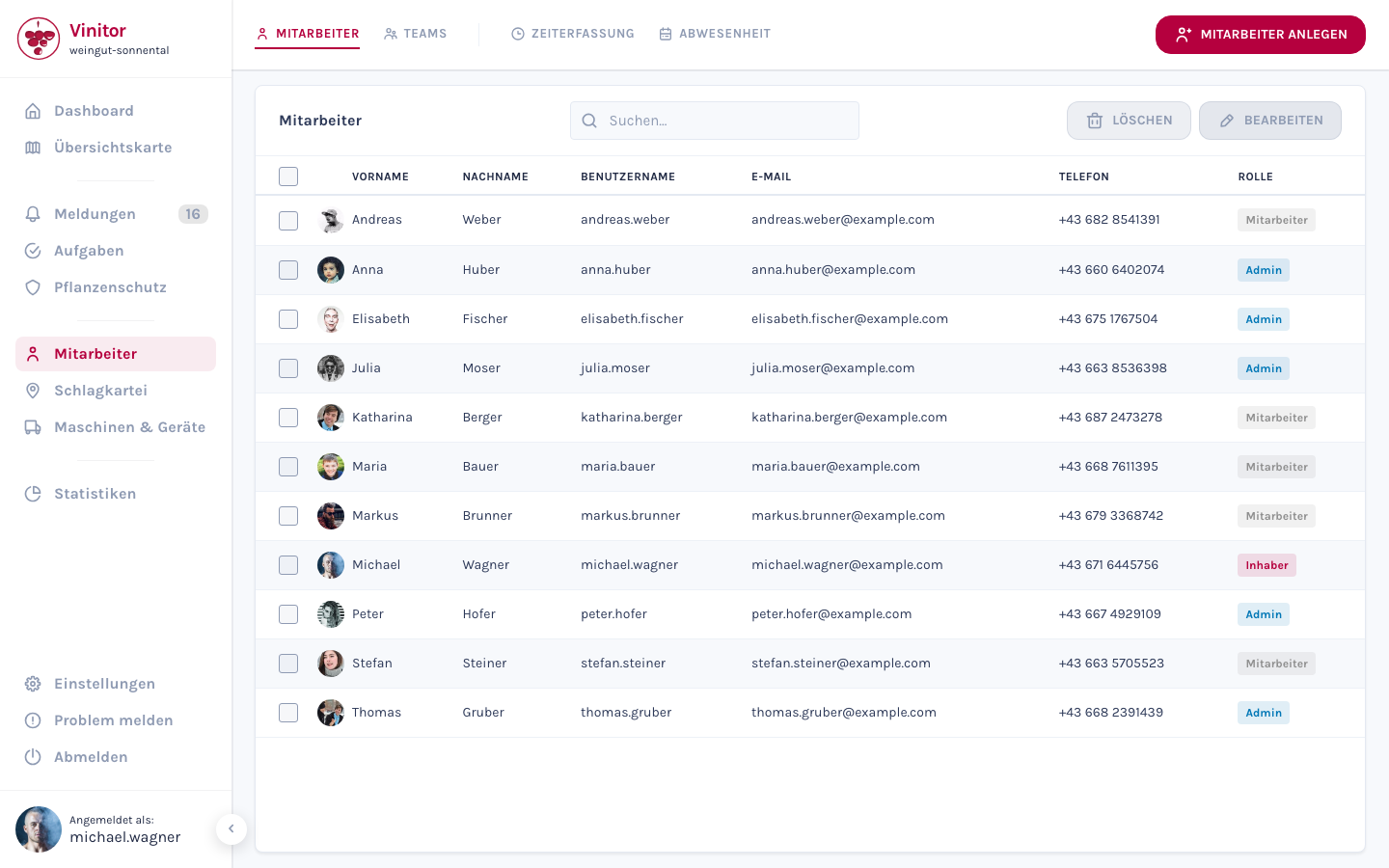
Section titled “Employee list”The table in the Employees tab shows the following columns:
| Column | Description |
|---|---|
| Checkbox | Multiple selection for bulk actions (edit, delete) |
| Avatar | User profile picture |
| First name | First name of the employee |
| Last name | Last name of the employee |
| Username | Automatically generated or manually customised username |
| Email address (optional) | |
| Phone | Phone number (optional) |
| Role | Assigned role (Owner, Administrator, Lead, Employee) |
All columns are sortable. You can filter by name, username, email and other fields using the search field.
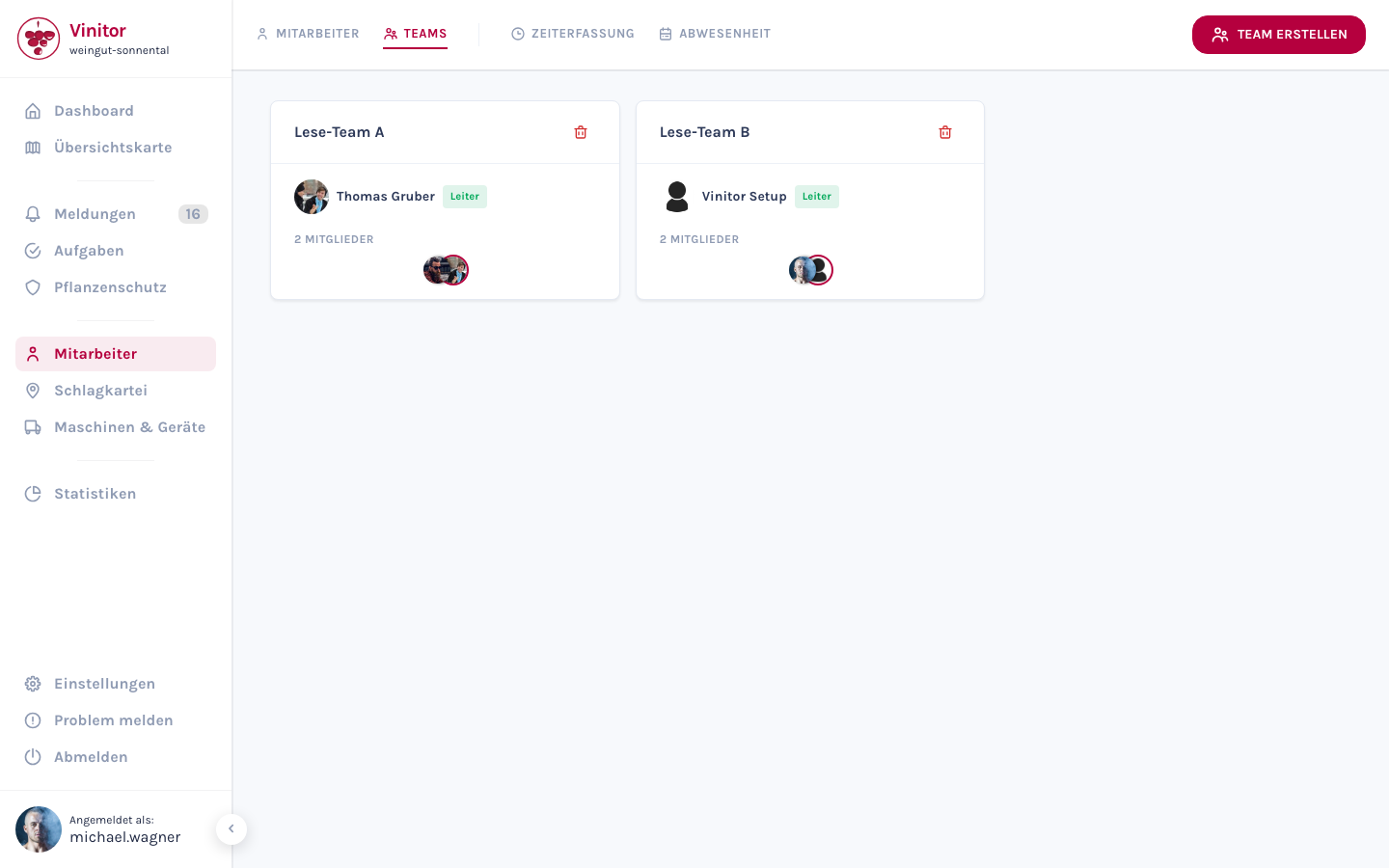
In the Teams tab you see all teams as cards. Each card shows the team name, the team lead (if assigned) and the avatars of the members.
For details on team management, see Teams.
Time tracking
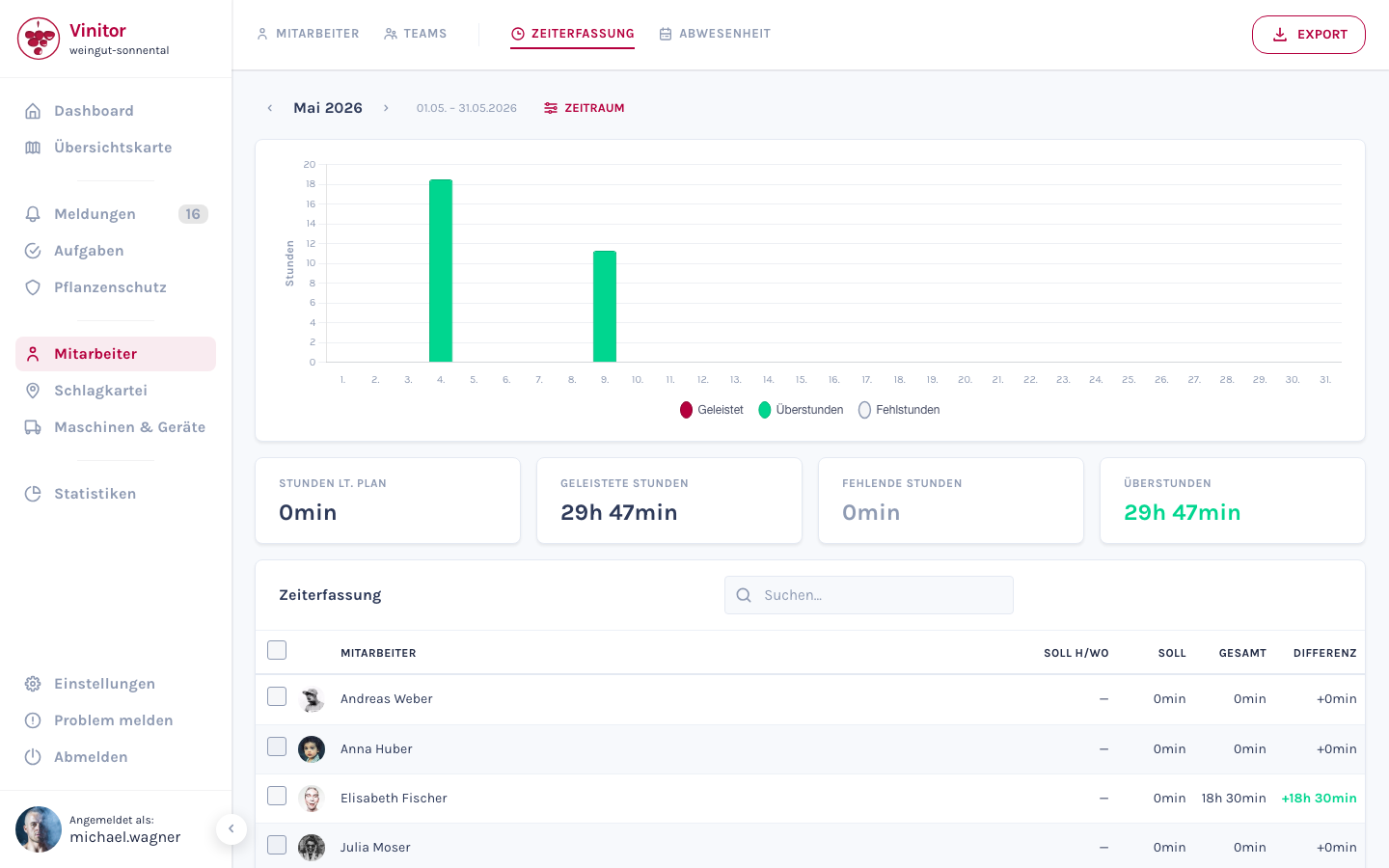
Section titled “Time tracking”The Time tracking tab provides a monthly overview of recorded working hours for all employees. A bar chart at the top shows the daily distribution, and below it a table lists the target and actual hours with the difference for each employee. The data can be exported as PDF or CSV.
For details, see Time tracking.
Absence
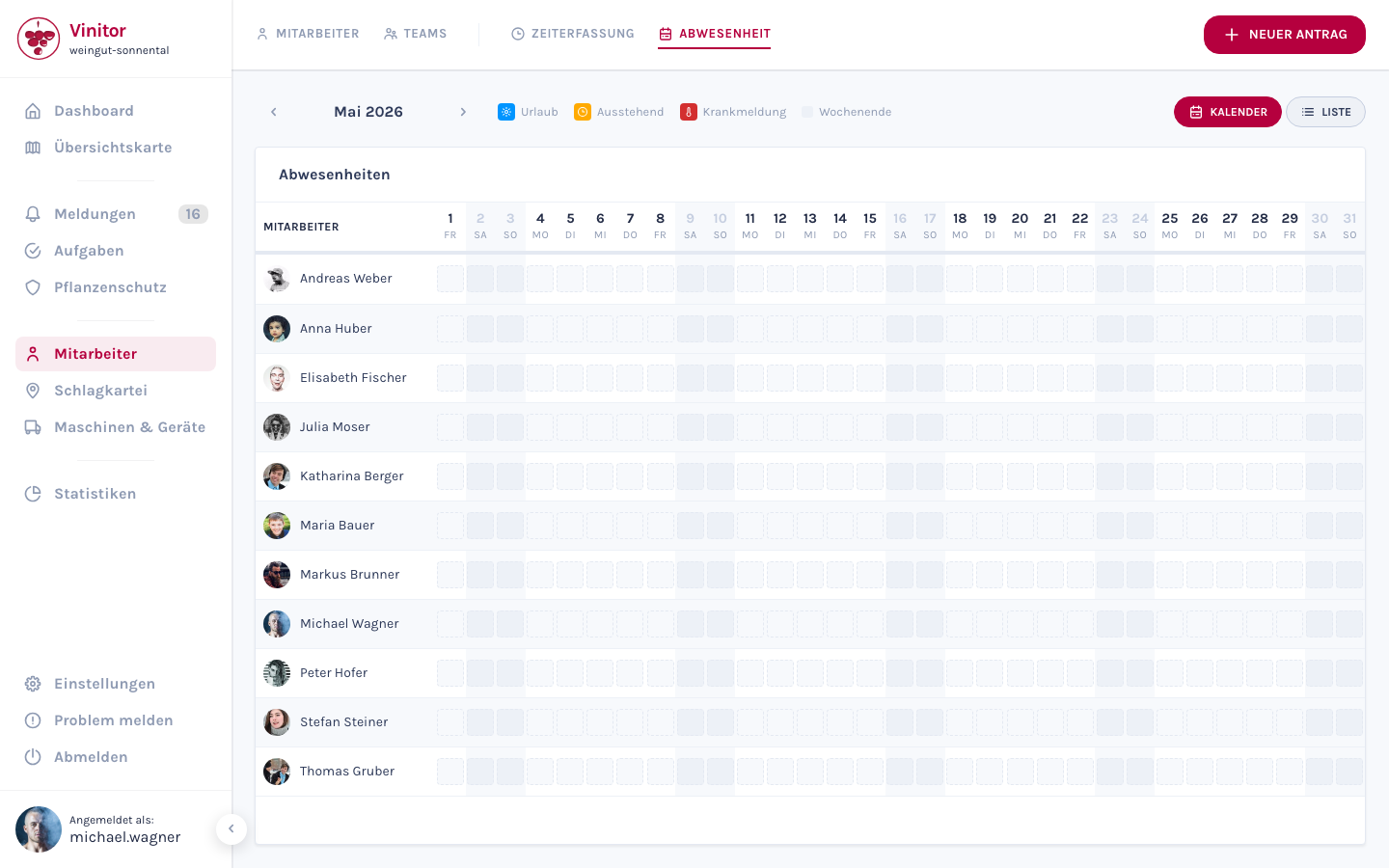
Section titled “Absence”In the Absence tab you manage leave and sick leave requests. The view offers a calendar and a list of all absence requests. Requests can be approved or rejected.
For details, see Annual leave & sick leave.
Detail view
Section titled “Detail view”Click on an employee in the list to open the detail view. This shows all information for the selected user:
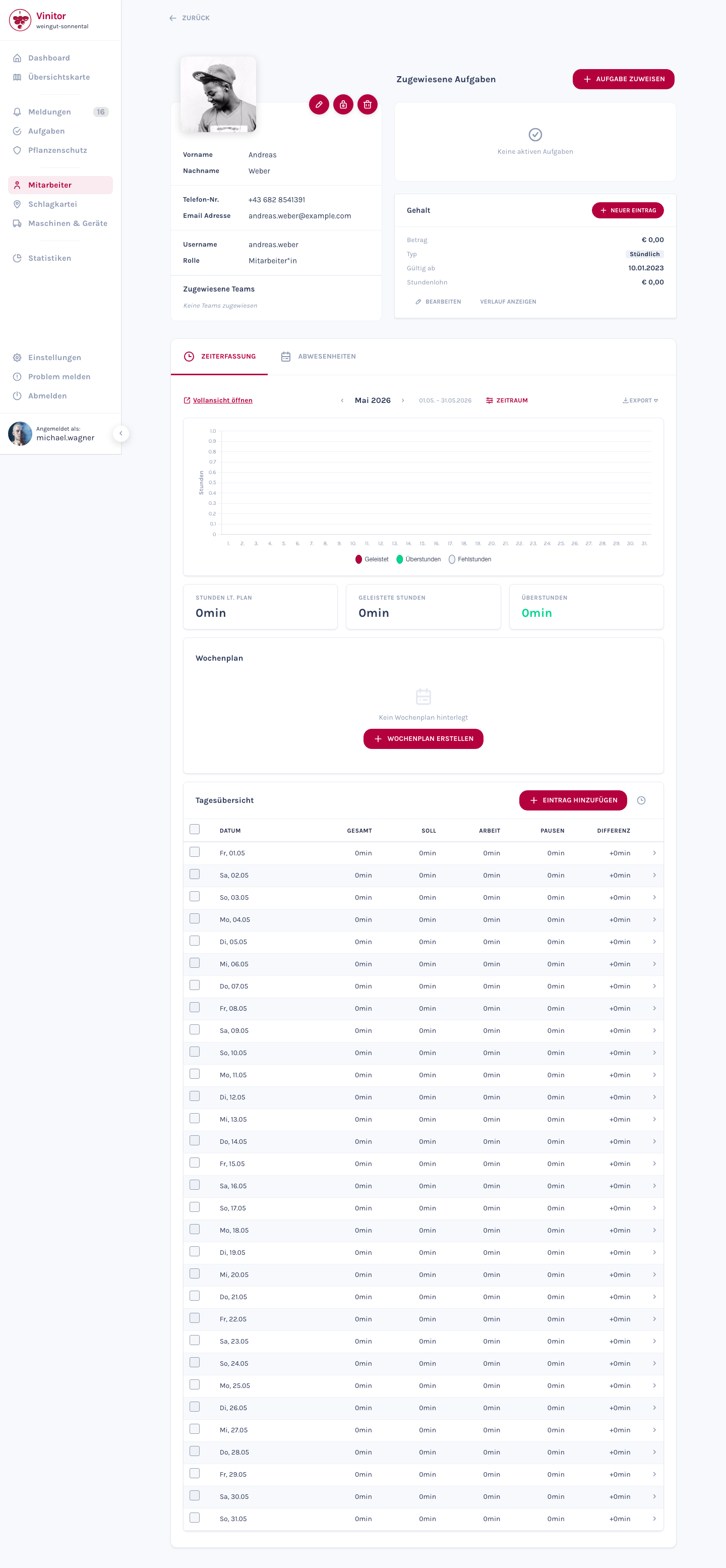
Left column:
- Profile card — Avatar, name, username, role, contact details
- Teams — Associated teams as clickable chips
Right column:
- Assigned tasks — Table of current tasks
- Salary — Current and past salary entries
Lower tabs:
- Time tracking — Individual working time overview with weekly schedule
- Absences — Holiday entitlements and sick leave for the employee
Actions:
- Edit profile (name, contact details, role, profile picture)
- Reset password
- Archive user
Permissions
Section titled “Permissions”The following permissions are relevant for employee management:
| Permission | Description |
|---|---|
USER_READ | View employee list and detail view |
USER_WRITE | Create and edit employees |
USER_DELETE | Archive/delete employees |
USER_WRITE_SELF | Edit own profile (name, contact details, profile picture) |
A complete overview of all 32 permissions can be found under Roles & permissions.
Mobile app
Section titled “Mobile app”In the mobile app employees can:
- View own profile
- Change phone number, email and profile picture
- Request leave and view leave history
Related pages
Section titled “Related pages”SUPPORT
Need help?
Our team is happy to help with any questions about Vinitor.