
Teams
Teams group employees and can be used for task assignment and organisation within the business. Each team has a name, a list of members and optionally a team lead.
Team overview
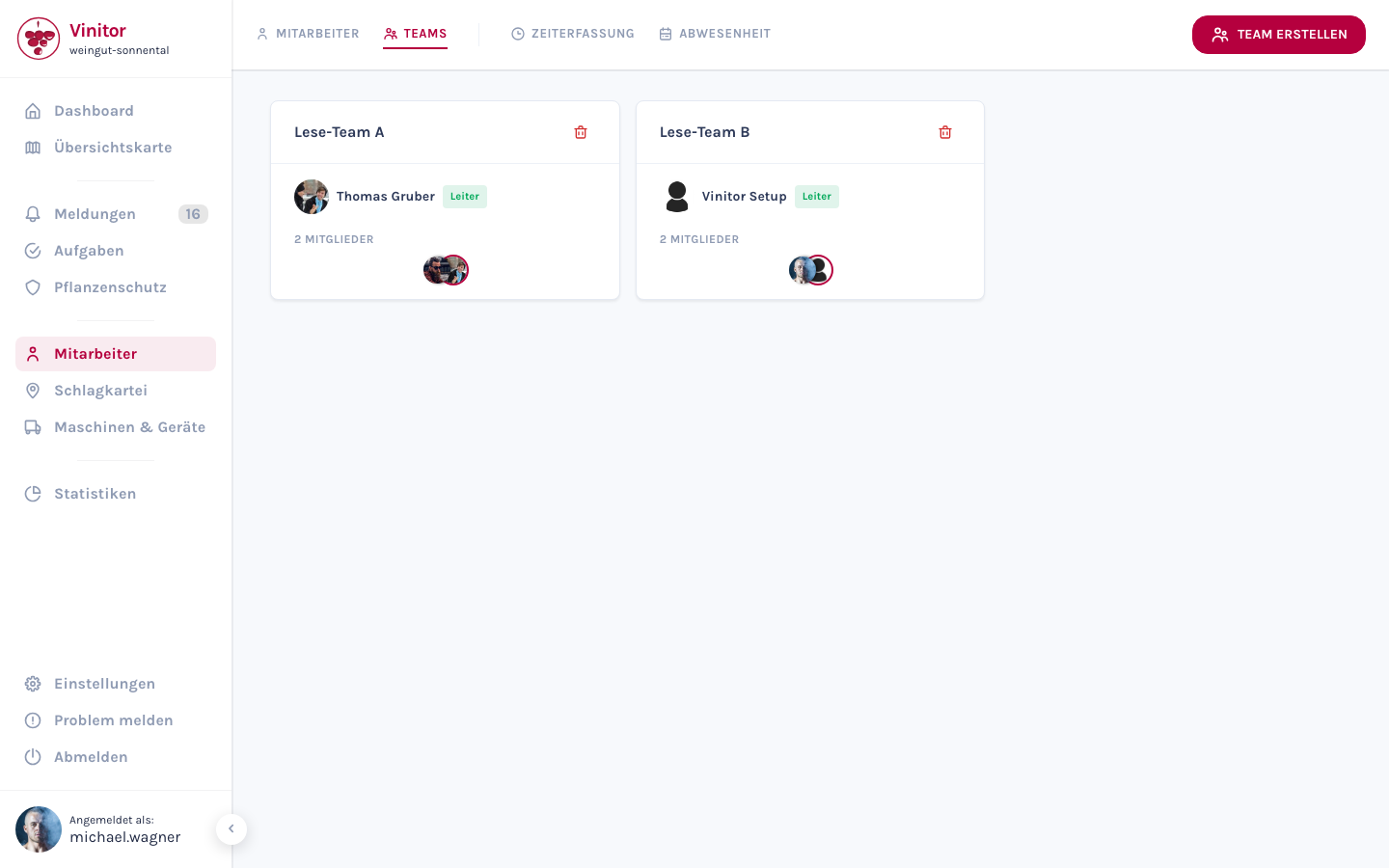
Section titled “Team overview”Teams are displayed as cards. Each card shows:
- Team name — Name of the team
- Lead — Badge with the name of the team lead (if assigned)
- Members — Avatars of all team members
- Delete button — Trash icon to remove the team
Create team
Section titled “Create team”-
Click on Create team.
-
Enter a team name.
-
Select members from the employee list.
-
Optionally select a team lead from the added members.
-
Click Save.
Edit team
Section titled “Edit team”Click on a team card to open the edit dialog. There you can change the team name, add or remove members and adjust the team lead.
Delete team
Section titled “Delete team”Click the trash icon on the team card. Only the team is deleted — the employees remain.
Teams in the detail view
Section titled “Teams in the detail view”In the detail view of an employee, the associated teams are displayed as clickable chips. Clicking on a chip opens the team in the edit dialog.
Permissions
Section titled “Permissions”| Permission | Description |
|---|---|
USER_READ | View teams and their members |
USER_WRITE | Create, edit and delete teams |
Related pages
Section titled “Related pages”SUPPORT
Need help?
Our team is happy to help with any questions about Vinitor.