
Groups
Groups combine several vineyards by any criteria you choose — e.g. by site, grape variety, management type or work area. A group shows the combined area as well as the position of all its vineyards on the map.
Group overview
Section titled “Group overview”You can reach the group overview via the Groups tab in the field record book.
| Column | Description |
|---|---|
| Name | Name of the group |
| Vineyards | Number of assigned vineyards |
| Grape varieties | List of the varieties contained in the group |
| Vine area | Combined area of all vineyards in the group, in hectares |
Next to it, a detail area shows the information for the currently selected group.
Group details
Section titled “Group details”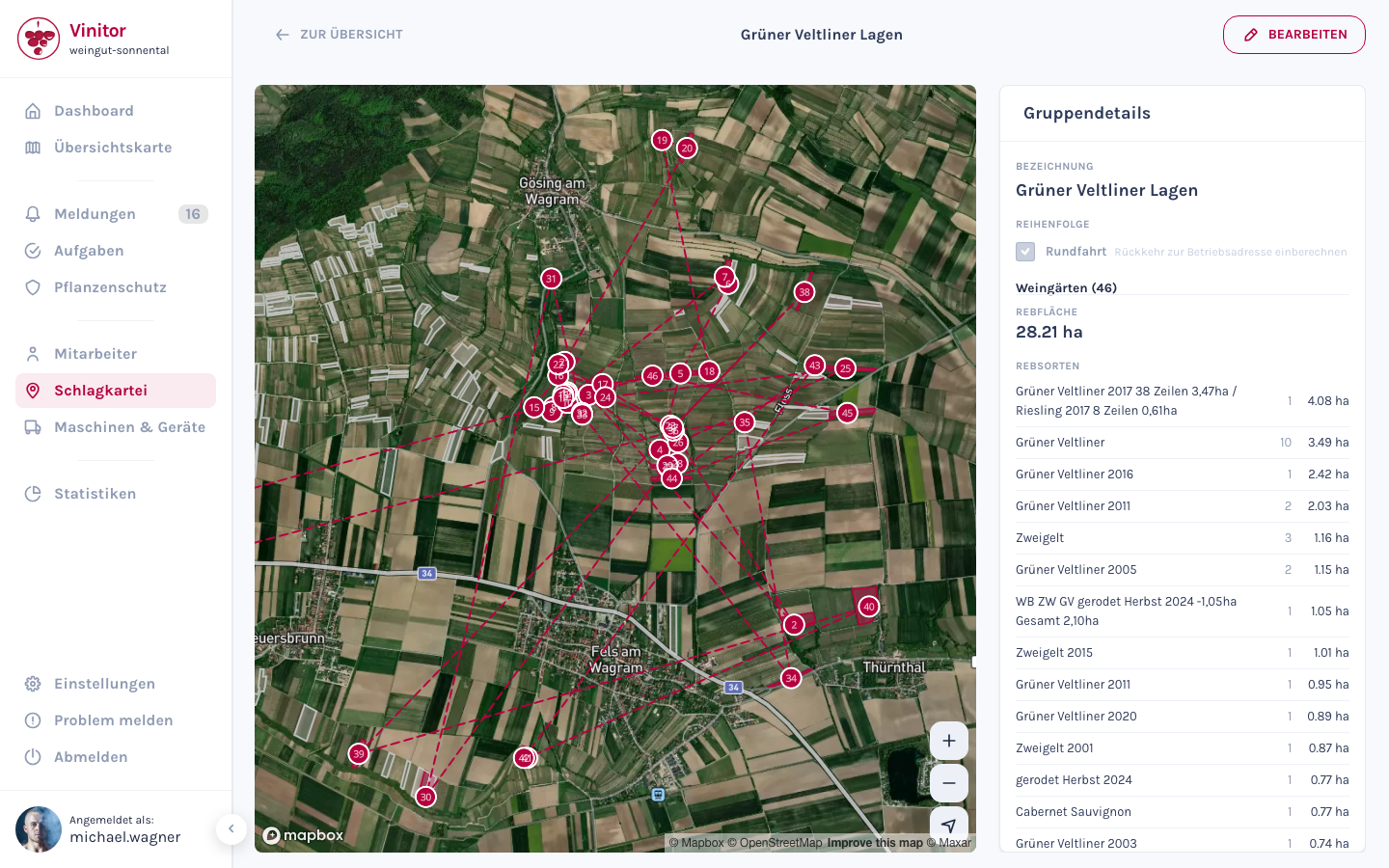
| Area | Content |
|---|---|
| Map | All vineyards in the group shown on the map |
| Vineyard list | All members of the group with number, name and vine area |
| Variety overview | List of all grape varieties contained in the group, with area |
| Combined area | Summed vine area of all group members |
Route optimisation
Section titled “Route optimisation”When creating or editing a group, Vinitor offers route optimisation:
| Option | Description |
|---|---|
| Round trip | Includes the return to the business address in the calculation |
| Generate | Calculates the optimal order based on GPS positions |
The calculated route minimises the total distance between all vineyards.
Groups in spray plans
Section titled “Groups in spray plans”Groups can be used directly when creating a spray plan: select a group instead of individual vineyards, to automatically assign all its vineyards to the plant protection record.
Related guides
Section titled “Related guides”SUPPORT
Need help?
Our team is happy to help with any questions about Vinitor.